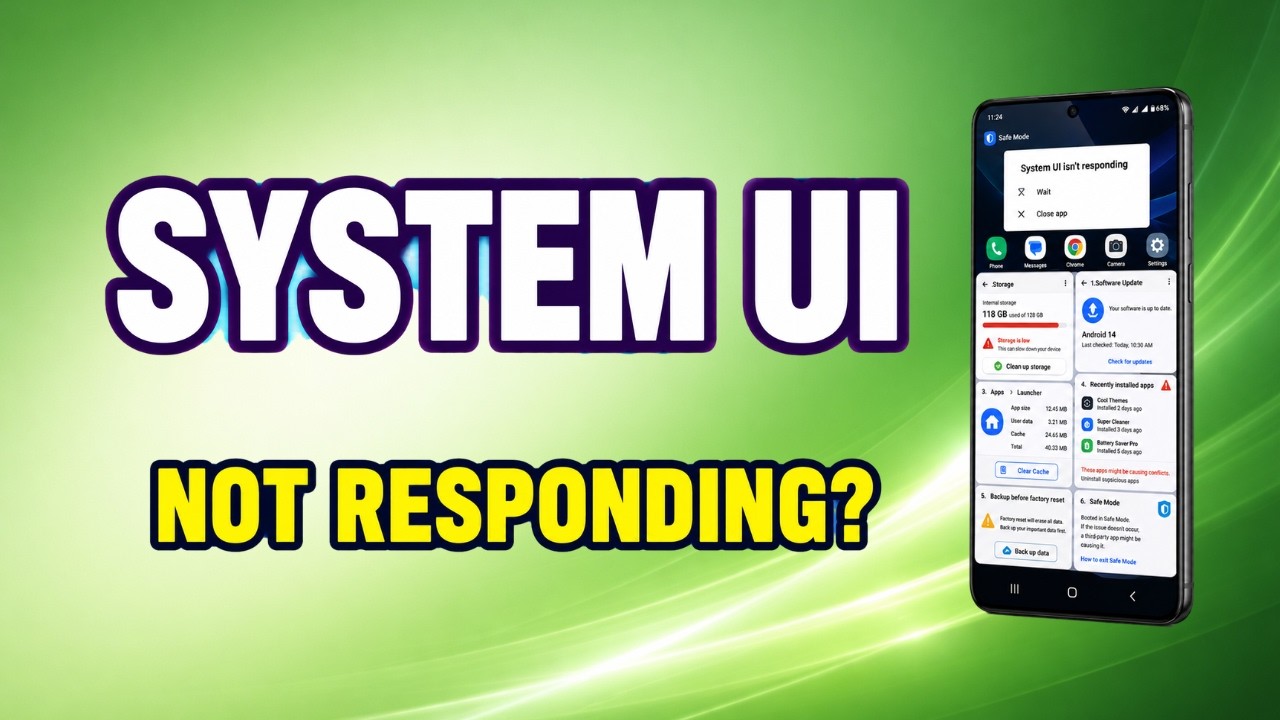
The “System UI Isn’t Responding” error means the core visual interface of your Android phone has completely crashed, leaving you with a frozen screen or a black display. In my ten years of troubleshooting mobile devices, I see this happen constantly when a heavy widget or background app runs out of memory. Follow the steps below, and we will force the interface to restart without losing any of your data.
Official Source: Google Android Help – Fix an installed Android app that isn’t working
Why Are You Seeing This Error?
Understanding the root cause helps prevent this from happening the next time you open a heavy app or customize your home screen.
-
Out of Memory (RAM): Too many apps running in the background, specifically custom launchers or heavy home screen widgets, starve the System UI process of the memory it needs to render your screen.
-
Corrupted App Cache: In my experience, a buggy update to the Google App or a third-party keyboard can corrupt the temporary files the system relies on, forcing the interface into a freeze loop.
-
Pending Operating System Updates: Sometimes, the core Android OS firmware gets out of sync with your installed apps, leading to severe resource conflicts that crash the graphical shell.
Official Source: Google Android Help – Speed up a slow Android device
What You Need Before Starting
-
You need to know your phone’s physical hardware button combination for a force restart (usually Power + Volume Down).
-
Ensure your phone has at least 20% battery life, or plug it into a charger before we begin.
-
Have your Google account password handy, just in case we need to boot into Safe Mode.
Official Source: Google Android Help – Restart a frozen phone
Step-by-Step Solutions (Ranked Easiest to Hardest)
Method 1: Perform a Hard Force Restart
When the screen is completely unresponsive to touch, a hardware-level restart is the only way to break the freeze.
-
Press and hold the Power button and the Volume Down button at the exact same time.
-
Keep holding both buttons for 10 to 15 seconds. Ignore any menus that might briefly flash on the screen.
-
Release the buttons the moment you feel a physical vibration or see the manufacturer logo (like Samsung, Motorola, or Google) appear.
-
Let the phone boot up normally.
Official Source: Google Pixel Help – Force restart your phone
Method 2: Clear the Google App and System UI Cache
The Google App is deeply tied to the Android home screen. Clearing its cache resolves the vast majority of these crashes in my experience.
-
Open your phone’s Settings app.
-
Tap on Apps or Apps & notifications, then select See all apps.
-
Scroll down and tap on the Google app.
-
Tap on Storage & cache, then hit the Clear cache button.
-
Go back to the main app list, tap the three vertical dots in the top right corner, and select Show system apps.
-
Find System UI in the list, tap it, select Storage & cache, and tap Clear cache.
-
Restart your phone.
Official Source: Google Android Help – Free up space and clear cache
Method 3: Uninstall Recently Updated Apps via Safe Mode
If the phone freezes immediately after turning on, a rogue third-party app is launching at boot. Safe mode disables all downloaded apps so you can safely remove the problem.
-
Press and hold the Power button to bring up the power menu.
-
Tap and hold your finger on the Power off icon on the screen until a “Reboot to safe mode” prompt appears.
-
Tap OK to reboot. You will see “Safe mode” stamped at the bottom of your screen.
-
Open Settings, go to Apps, and uninstall any themes, launchers, or widgets you downloaded right before the freezing started.
-
Restart your phone normally to exit Safe mode.
Official Source: Google Android Help – Find problem apps by rebooting to safe mode
Method 4: Reset App Preferences
If background permissions get tangled, resetting app preferences restores factory defaults without deleting your personal photos or texts.
-
Open Settings and scroll down to System.
-
Tap on Reset options (you may need to tap Advanced first to see this).
-
Select Reset app preferences.
-
Tap Reset apps on the warning prompt to confirm.
-
Restart your device.
Official Source: Google Android Help – Reset your Android device settings
Frequently Asked Questions (FAQ)
Will clearing the System UI cache delete my photos or contacts? No. The cache only holds temporary loading files for the interface. Your personal data, text messages, photos, and app logins remain completely untouched.
Official Source: Google Android Help – Manage storage on Android
Why does my screen go completely black before the error pops up? The black screen happens because the graphical shell has crashed. The system is desperately trying to restart the visual interface in the background before finally giving up and showing you the “Isn’t Responding” error dialog.
Official Source: Android Developers – App Not Responding (ANR) errors
How to Verify the Fix
Unlock your phone, rapidly swipe left and right between your home screen pages, and pull down the notification shade to confirm the interface remains buttery smooth without any freezing, stuttering, or error pop-ups.
Official Source: Google Android Help – Check and update your Android version