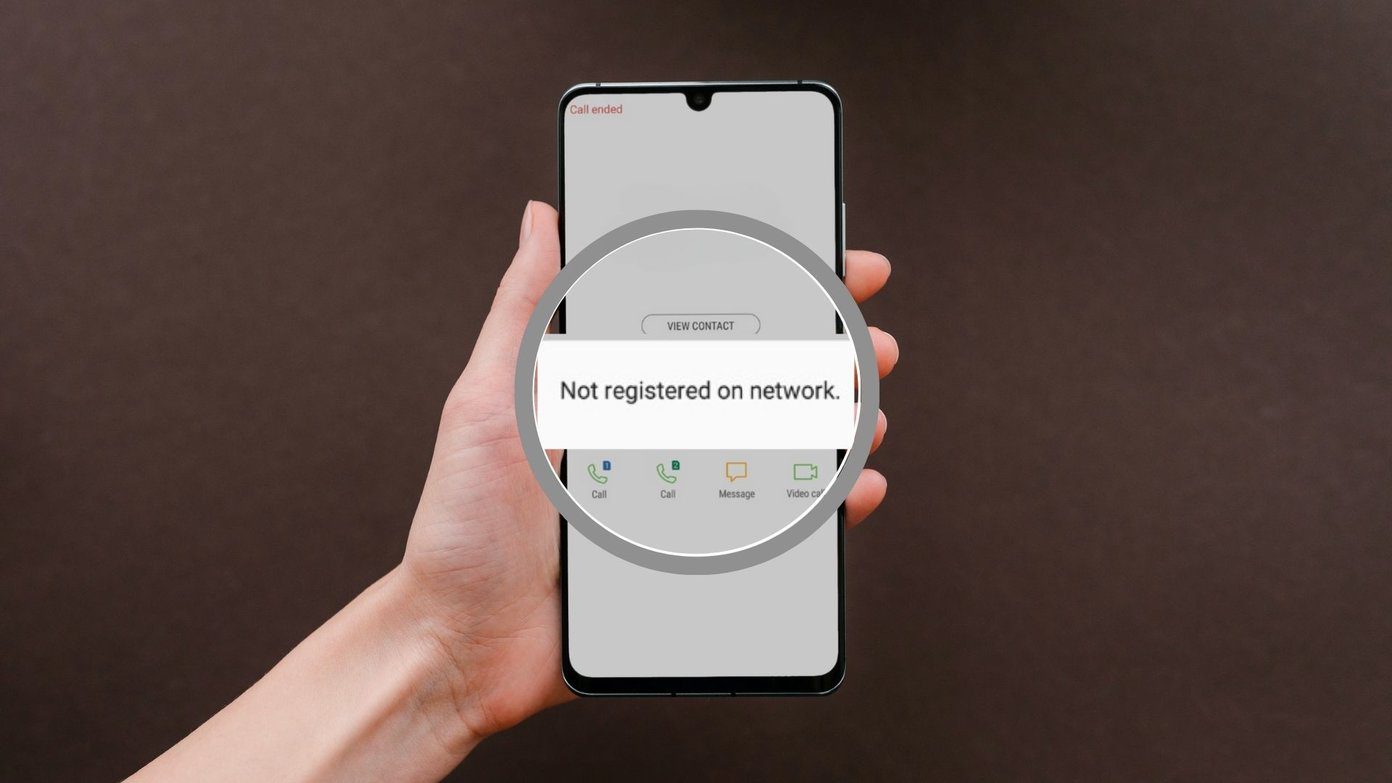
The “Not Registered on Network” error means your Samsung Galaxy has completely lost communication with your carrier’s cell towers, leaving you unable to make calls or send texts. In my ten years of troubleshooting mobile devices, I see this happen weekly when the internal radio gets confused or the SIM card shifts out of alignment. Follow the steps below, and we will force your phone to reconnect to the network today.
Official Source: Samsung Support – Calls drop or cannot be made on Galaxy phone
Why Are You Seeing This Error?
Understanding the physical or software trigger helps you prevent this from happening the next time you drop your phone or install an update.
-
SIM Card Misalignment: A sudden drop or even compacted pocket lint can cause the gold pins on the SIM card to lose contact with the motherboard reader.
-
Stuck Network Selection: Your phone’s radio software got stuck trying to hand off from a 5G tower to an LTE tower and gave up entirely, locking itself out of the network.
-
Corrupted Carrier Settings: An outdated Access Point Name (APN) or an interrupted system update broke the configuration file your phone uses to identify itself to the carrier.
Official Source: Samsung Support – No Service or signal on Samsung phone
What You Need Before Starting
-
You will need a SIM ejector tool, a thumbtack, or a paperclip to physically remove the tray from the side or bottom of the phone.
-
Connect to a stable Wi-Fi network in case we need to download a carrier software patch.
-
Ensure your phone has at least 15% battery life so it does not shut down while resetting the cellular radios.
Official Source: Samsung Support – Remove or insert SIM card
Step-by-Step Solutions (Ranked Easiest to Hardest)
Method 1: Force a Manual Network Connection
Often, I see the radio just needs a forced reset to stop searching for a dead tower and grab a fresh signal.
-
Swipe down from the top of your screen to open the Quick settings panel.
-
Tap the Airplane mode icon to turn it on, wait exactly 30 seconds, and tap it again to turn it off. (If the error persists, proceed to step 3).
-
Open the Settings app and tap on Connections.
-
Tap on Mobile networks, then select Network operators.
-
Toggle the switch next to Select automatically to the off position.
-
Wait a minute for the list to populate, then manually tap your carrier’s name (e.g., AT&T, Verizon, T-Mobile).
-
Once the phone registers, turn Select automatically back on.
Method 2: Clean and Reseat the SIM Card
If the software toggle fails, the physical connection between the SIM and the motherboard is likely dirty or loose.
-
Turn your Samsung Galaxy completely off by holding the Power button and tapping Power off.
-
Insert your SIM ejector tool into the small hole next to the SIM tray and press firmly until the tray pops out.
-
Remove the SIM card and gently wipe the gold contacts using a clean, dry microfiber cloth.
-
Place the SIM card back into the tray, ensuring the diagonally notched corner lines up perfectly.
-
Slide the tray back into the phone until it clicks shut, then turn the phone on.
Method 3: Reset Network Settings
This wipes out the background configurations and forces your phone to download fresh connection rules from your carrier.
-
Open the Settings app and scroll down to General management.
-
Tap on Reset.
-
Select Reset network settings.
-
Tap the Reset settings button (you will be asked to enter your lock screen PIN or pattern).
-
Tap Reset one more time to confirm. Your phone will instantly restart its Wi-Fi, Bluetooth, and cellular radios.
Method 4: Reset APN Settings to Default
If an update scrambled your Access Point Names, your phone literally does not know the digital address required to log onto the network.
-
Open Settings, tap Connections, and select Mobile networks.
-
Tap on Access Point Names.
-
Tap the three vertical dots in the top right corner of the screen.
-
Select Reset to default.
-
Tap Reset to confirm, then restart your phone.
Official Source: Google Android Help – Fix mobile network connection issues
Frequently Asked Questions (FAQ)
Will resetting my network settings delete my pictures or apps? No. The “Reset network settings” option only wipes out saved Wi-Fi passwords, Bluetooth pairings, and cellular configurations. Your personal documents, photos, text messages, and installed applications remain completely untouched.
Official Source: Samsung Support – What do the different reset options do?
Why does my phone still say not registered after doing all of this? If you bought the phone used, the original owner may have reported it lost or stolen, which prompts carriers to blacklist the IMEI number and block it from all networks. If the phone is new, your physical SIM card has likely failed internally and needs to be swapped for a new one at your carrier’s local retail store.
Official Source: Samsung Support – Find the IMEI, model number, and serial number
How to Verify the Fix
Turn off your Wi-Fi, look at the top right corner of your screen to confirm you see solid cellular signal bars, and dial a friend’s number to ensure the call connects without instantly dropping.
Official Source: Samsung Support – Make and answer calls on your Galaxy phone