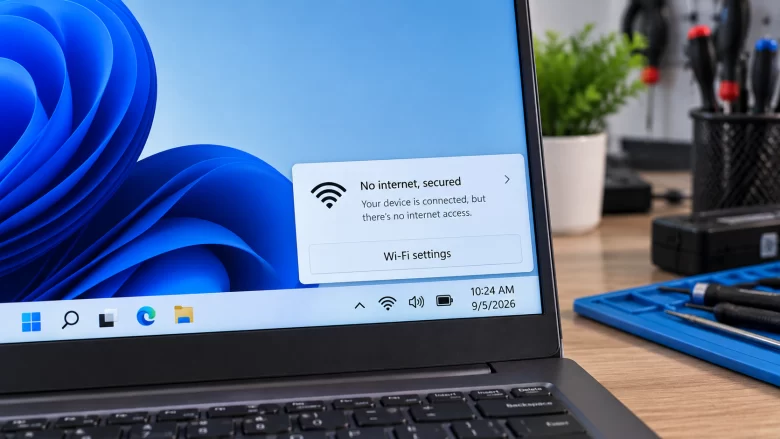
When your taskbar displays a globe icon and the Wi-Fi menu reads No Internet, Secured, two completely separate things are happening at once:
- “Secured” means the local wireless handshake succeeded. Your PC’s Wi-Fi adapter negotiated WPA2 or WPA3 encryption with your router’s radio. The physical radio link between your laptop or desktop and the router in the next room is up.
- “No Internet” means Windows failed its background reachability probe. Windows 11 relies on a built-in service called the Network Connectivity Status Indicator (NCSI), hosted inside the Network List Manager service. Every time you join a network, NCSI sends an active HTTP probe to Microsoft’s Akamai-hosted test server and checks whether the response returns the exact plain-text string
Microsoft Connect Test. If that probe times out, gets hijacked by a dead DNS server, or hits a stalled router gateway, Windows flips the status to No Internet, Secured.
Most troubleshooting guides tell you to immediately reboot your router, update your network drivers, or reset Windows. That wastes time because you are firing blind. Before changing a single setting, you can run a 60-second test in Command Prompt to pinpoint the exact layer that broke.
Step 1: Run the 60-Second Command Prompt Isolation Test
Press Win + R, type cmd, and press Ctrl + Shift + Enter to open an Administrator Command Prompt. We are going to check four specific checkpoints in order: your local IP assignment, your router gateway, external IP routing, and domain name resolution.
| Diagnostic Command | What It Tests | Result That Points to the Culprit | Jump to Fix |
|---|---|---|---|
ipconfig /all |
Local DHCP IP assignment from router | IPv4 address starts with 169.254.x.x or Default Gateway is blank |
Fix 1 (DHCP / IP Conflict) |
ping 192.168.1.1 (your gateway) |
Local Wi-Fi link between PC and router | Request timed out or General failure |
Fix 2 (Adapter / VPN / Driver) |
ping 1.1.1.1 |
Outbound routing past the router to the internet | Gateway ping works, but 1.1.1.1 times out or shows Destination net unreachable |
Fix 3 (Router WAN / ISP Drop) |
nslookup example.com |
DNS server translating website names to IPs | 1.1.1.1 ping works, but nslookup returns DNS request timed out |
Fix 4 (Broken ISP DNS) |
Here is how to run and read those four checks in under a minute:
1. Check Your IPv4 Address and Default Gateway
Run the standard ipconfig command with the /all flag:
ipconfig /all
Scroll to Wireless LAN adapter Wi-Fi and inspect three lines:
DHCP Enabled. . . . . . . . . . . : Yes
Autoconfiguration IPv4 Address. . : 169.254.84.112(Preferred)
Default Gateway . . . . . . . . . :
- If your IPv4 address starts with
169.254.x.x: Your PC never received a valid IP lease from the router’s DHCP server and fell back to Automatic Private IP Addressing (APIPA). Go directly to Fix 1. - If your IPv4 address looks normal (such as
192.168.1.45or10.0.0.18) and shows a Default Gateway (such as192.168.1.1): Write down that Default Gateway number and run the next test below.
2. Ping Your Router’s Default Gateway
Replace 192.168.1.1 below with the exact Default Gateway IP you saw in your ipconfig output:
ping 192.168.1.1
- If you get
Request timed outorGeneral failure: Even though Wi-Fi says “Secured,” IP packets are not making it from Windows to your router. A stuck VPN kill-switch, corrupted Windows TCP/IP stack, or Wi-Fi band mismatch is blocking local traffic. Go to Fix 2. - If you get four replies (
time=2ms TTL=64): Your PC and router are talking cleanly. Move to test 3.
3. Ping an External Public IP Address
Now test whether your router can send raw packets out to the internet without using DNS:
ping 1.1.1.1
- If
192.168.1.1replied, but1.1.1.1times out: The breakdown is between your router’s WAN port and your Internet Service Provider (ISP). Troubleshoot the router and modem in Fix 3. - If
1.1.1.1replies with0% loss: Your internet connection is actually working! Why does Windows still say “No Internet, Secured” and why won’t Chrome load websites? Either your DNS server is dead (Fix 4) or the Windows NCSI probe is stuck (Fix 5).
Fix 1: Resolve 169.254.x.x APIPA and DHCP Lease Failures
When ipconfig /all shows a 169.254.x.x address, your Wi-Fi password was accepted, but the router’s DHCP server failed to hand your PC a usable local IP address.
Force a Fresh DHCP Handshake
In your Administrator Command Prompt, release the dead autoconfiguration address and request a new lease:
ipconfig /release
ipconfig /renew
Wait 10 to 15 seconds. If the command hangs on Renewing adapter Wi-Fi... and errors out with Unable to contact your DHCP server, check two common router-side causes:
- Router DHCP Pool Exhaustion: Many ISP-supplied routers limit the default DHCP pool to 32 or 50 addresses (for example,
192.168.1.2through192.168.1.50). Once smart TVs, phones, tablets, and smart plugs fill those slots, new devices connect to Wi-Fi as “Secured” but get no IP. Log into your router admin page from a connected phone, open LAN / DHCP Server Settings, expand the ending IP to.250, and shorten the DHCP Lease Time from1440minutes (24 hours) to480minutes (8 hours). - Stuck Windows DHCP Client Service: Press Win + R, type
services.msc, and press Enter. Scroll to DHCP Client, right-click it, and verify its Startup type is set to Automatic and its status is Running.
Temporary Workaround: Assign a Static Local IP
If a cheap router’s DHCP daemon is frozen and you cannot reboot the router immediately because others are on the network, assign a manual IP inside Windows 11:
- Open Settings > Network & internet > Wi-Fi and click your connected network name.
- Next to IP assignment, click Edit and switch from Automatic (DHCP) to Manual.
- Toggle IPv4 on and enter:
- IP address: Pick a high number on your router’s subnet to avoid collisions, such as
192.168.1.225(if your router is192.168.1.1). - Subnet mask:
255.255.255.0 - Gateway:
192.168.1.1(your router’s IP) - Preferred DNS:
1.1.1.1
- IP address: Pick a high number on your router’s subnet to avoid collisions, such as
- Click Save. If the router’s DHCP daemon was the only bottleneck, your internet will come back within three seconds.
Fix 2: Clear Local Packet Blocks (VPN Kill-Switches, Winsock, and 5GHz DFS Channels)
If you have a valid IP address (or a broken gateway ping) and cannot even ping your own router, something on your PC or Wi-Fi channel is dropping local frames.
Check for Orphaned VPN Kill-Switches and Virtual Tap Adapters
Did you use a VPN (NordVPN, ExpressVPN, ProtonVPN, Mullvad, or Cloudflare WARP) before putting your PC to sleep? When Windows 11 wakes from Modern Standby, VPN background services frequently crash while leaving their firewall “Kill Switch” rules active in the Windows Filtering Platform.
- Open Task Manager (
Ctrl + Shift + Esc), locate any VPN background service, end the task, then re-open the VPN app and cleanly click Connect followed by Disconnect. - Press Win + R, type
ncpa.cpl, and press Enter. If you see a third-partyTAP-Windows Adapter V9orWireGuard Tunnelstuck in an Identifying… state, right-click it and select Disable.
Rebuild the Windows 11 TCP/IP Stack and Winsock Catalog
If a third-party firewall, Windows Update, or VPN filter driver corrupted the Winsock catalog, run the official NetShell (netsh) TCP/IP reset utility inside your Administrator Command Prompt:
netsh winsock reset
netsh int ip reset
ipconfig /release
ipconfig /renew
ipconfig /flushdns
Restart your PC after running all five lines. The netsh int ip reset command overwrites the two core registry keys (SYSTEM\CurrentControlSet\Services\Tcpip\Parameters and DHCP\Parameters) with clean default values, removing corrupted static routes without deleting your saved Wi-Fi passwords.
Disable 802.11ax/be Channel Width Conflicts on Older Routers
Intel AX200, AX210, and Killer Wi-Fi 6E/7 cards frequently connect as “No Internet, Secured” on older dual-band routers when the router hops onto a 5GHz DFS (Dynamic Frequency Selection) channel or forces 160MHz channel bonding:
- Right-click the Start button and open Device Manager.
- Expand Network adapters, right-click your Wi-Fi adapter, and select Properties.
- Open the Advanced tab:
- Select Channel Width for 5GHz and change it from Auto to 20 MHz (or 40 MHz) to test stability.
- Select MIMO Power Save Mode and set it to No SMPS so Windows does not throttle your spatial streams when waking from sleep.
- On the Power Management tab (if visible on your driver model), uncheck Allow the computer to turn off this device to save power.
Fix 3: Fix Router WAN Drops and PPPoE / Fiber MTU Mismatches
What if ping 192.168.1.1 works every time, ping 1.1.1.1 fails, and every phone and laptop in your house also says “Connected without internet”? Your internal Wi-Fi is fine—your router has lost its upstream WAN session with your ISP.
Perform a Proper Sequencing Reboot (Modem First, Router Second)
Yanking both power cords and plugging them back in at the same time often fails because the router boots faster than the fiber ONT or cable modem, requests a WAN IP before the modem has locked onto the ISP headend, and caches a 0.0.0.0 WAN address.
- Unplug power from both the ISP modem/ONT and your Wi-Fi router.
- Wait 60 full seconds so the capacitors drain and your ISP’s DHCP/PPPoE session clears on their end.
- Plug in only the modem/ONT first. Wait 2 to 3 minutes until its PON / Online / WAN LED turns solid green or white.
- Plug in your Wi-Fi router and wait for it to pull a fresh public IP.
Check for MAC Clone or ISP VLAN Tagging Issues
If you recently replaced your ISP router with your own TP-Link, ASUS, or Netgear router and get “No Internet, Secured”:
- Cable ISPs: Cable modems lock onto the MAC address of the first router plugged into them after boot. Either reboot the cable modem while the new router is connected, or use MAC Clone in your router’s Internet / WAN settings.
- Fiber PPPoE ISPs: Many fiber providers require a specific VLAN ID (commonly VLAN
10,20, or35) on the WAN port alongside your PPPoE username and password. Without the right VLAN tag, the router powers up its Wi-Fi normally while its WAN link sits disconnected.
Fix 4: Bypass Dead ISP DNS Servers with Cloudflare or Google DNS
If ping 1.1.1.1 succeeded in Step 1 (0% packet loss), your physical internet connection is completely healthy. The reason browsers show DNS_PROBE_FINISHED_NO_INTERNET and Windows 11 shows “No Internet, Secured” is that your router is forwarding DNS requests to an overloaded or offline ISP DNS server.
Instead of relying on your ISP’s default resolver, configure Cloudflare’s 1.1.1.1 Windows setup or Google Public DNS configuration directly on your Windows 11 Wi-Fi adapter:
- Open Settings > Network & internet > Wi-Fi > Hardware properties (or click your active Wi-Fi network).
- Next to DNS server assignment, click Edit.
- Switch the drop-down from Automatic (DHCP) to Manual.
- Toggle IPv4 on and fill in one of these verified pairs:
- Cloudflare DNS: Preferred
1.1.1.1/ Alternate1.0.0.1(Enable DNS over HTTPS: On (automatic template) if you want encrypted DNS queries that bypass ISP DNS interception). - Google Public DNS: Preferred
8.8.8.8/ Alternate8.8.4.4.
- Cloudflare DNS: Preferred
- If IPv6 is enabled on your network, toggle IPv6 on as well and enter
2606:4700:4700::1111and2606:4700:4700::1001(Cloudflare) or2001:4860:4860::8888and2001:4860:4860::8844(Google). Leaving IPv6 DNS on Automatic while changing IPv4 DNS is a classic trap: Windows 11 prefers IPv6 queries first, so a broken ISP IPv6 DNS server will still cause timeouts until you override both or uncheck Internet Protocol Version 6 (TCP/IPv6) inncpa.cpl. - Click Save, then run
ipconfig /flushdnsin Command Prompt to purge negative DNS cache entries.
Fix 5: Repair False-Positive “No Internet, Secured” Warnings (Windows 11 NCSI Bug)
Sometimes your browser loads websites at full speed, ping 1.1.1.1 and nslookup both pass, yet Windows 11 stubbornly displays No Internet, Secured—blocking Microsoft Store downloads, Outlook desktop login, Xbox App sign-ins, and Spotify, which all query the Windows NCSI API before attempting to go online.
This false alarm happens when a Pi-hole, AdGuard Home, third-party hosts file tweak, or corporate proxy blocks www.msftconnecttest.com, or when passive polling gets disabled in the registry.
- Press Win + R, type
regedit, and press Enter. - Navigate to the following registry key documented in the Windows NCSI overview:
HKEY_LOCAL_MACHINE\SYSTEM\CurrentControlSet\Services\NlaSvc\Parameters\Internet - Verify these three default values in the right pane:
EnableActiveProbing(DWORD): Set to1ActiveWebProbeHost: Set towww.msftconnecttest.comActiveWebProbeContent: Set toMicrosoft Connect Test
- Next, check if a Group Policy or “privacy debloat script” disabled passive polling by navigating to:
HKEY_LOCAL_MACHINE\SOFTWARE\Policies\Microsoft\Windows\NetworkConnectivityStatusIndicatorIf you see
NoActiveProbeset to1orDisablePassivePollingset to1, delete those values or set both to0. - Open
C:\Windows\System32\drivers\etc\hostsin Notepad and make sure no line is redirectingwww.msftconnecttest.comordns.msftncsi.comto0.0.0.0or127.0.0.1. - Restart the Network List Service (
netprofm) inservices.mscor reboot your PC. If none of the manual resets above stick due to a damaged network profile, you can run a full adapter reinstall from Settings > Network & internet > Advanced network settings > Network reset as outlined in Microsoft’s Wi-Fi troubleshooting guide.