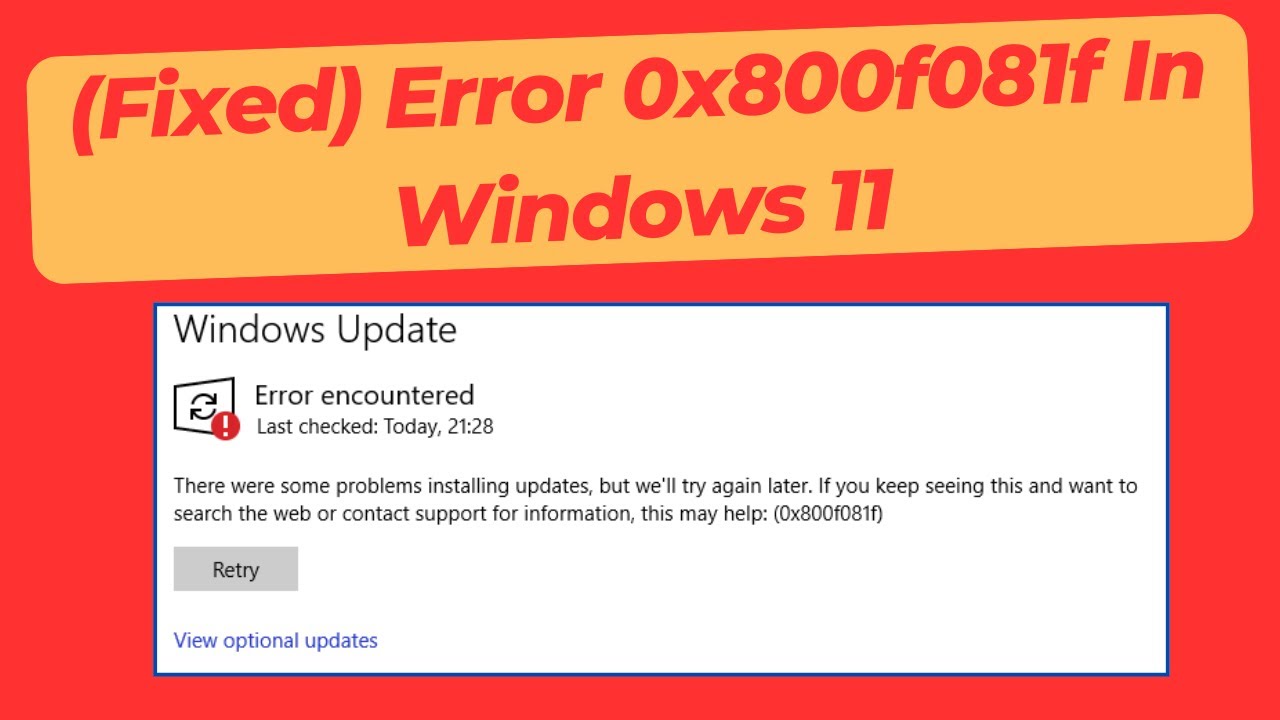
Windows 11 update error 0x800f081f usually pops up when the system cannot find the source files needed to install a specific package, stopping your update dead in its tracks. In my ten years of hands-on IT support, I see this specific error code weekly—it looks intimidating, but it is entirely fixable without wiping your hard drive or reinstalling your operating system. Follow the steps below, and we will force your PC to find the right files and finish the update today.
Official Source: Microsoft Learn – Windows Update error codes and component store troubleshooting
Why Are You Seeing This Error?
Understanding the root cause helps prevent this from happening on the next Patch Tuesday. This error specifically triggers when Windows Update requests a file payload that is missing from your local system cache.
-
Corrupted Component Store: The internal Windows image (which acts as a backup to repair your system files) has missing payloads. When the update tries to verify against this image, it fails.
-
Broken .NET Framework 3.5 Dependencies: Often, I see this happen when the system tries to enable or update the .NET Framework 3.5, but the local source files in your installation directory are damaged or missing entirely.
-
Interrupted Cache Downloads: Your network dropped a packet mid-stream, leaving a fragmented file inside the SoftwareDistribution folder. Windows sees the file exists but cannot read it, causing the 0x800f081f halt.
Official Source: Microsoft Support – .NET Framework 3.5 installation errors: 0x800f0906, 0x800f0907, or 0x800f081f
What You Need Before Starting
-
You must be logged into an account with full Administrator privileges.
-
An active, stable internet connection to redownload fresh update files directly from Microsoft’s servers.
-
Save all your open work. We will be running command-line repairs and restarting the computer to apply the fixes.
Official Source: Microsoft Support – Create a local user or administrator account in Windows
Step-by-Step Solutions (Ranked Easiest to Hardest)
Method 1: The DISM and SFC Command-Line Repair
If the component store is broken, we need to force Windows to repair its own background image before it can accept new updates. This is the most effective fix for this specific error code.
-
Press the Windows key, type cmd, right-click on Command Prompt, and select Run as administrator.
-
Type DISM.exe /Online /Cleanup-image /Restorehealth and press Enter.
-
Note: This process reaches out to Windows Update servers to pull fresh files. It might take 15 to 20 minutes, so let it sit even if the progress bar seems stuck at 20%.
-
Once the screen says “The operation completed successfully,” type sfc /scannow and press Enter.
-
Wait for the System File Checker scan to hit 100%.
-
Close the Command Prompt window and restart your computer.
Official Source: Microsoft Support – Use the System File Checker tool to repair missing or corrupted system files
Method 2: Manually Clear the SoftwareDistribution and Catroot2 Folders
In my experience, wiping out the old download folders and cryptographic catalogs fixes the vast majority of stuck updates. We have to stop the background services before Windows will let us delete these files.
-
Press the Windows key, type cmd, right-click on Command Prompt, and select Run as administrator.
-
Type net stop wuauserv and press Enter to kill the main update service.
-
Type net stop cryptSvc and press Enter.
-
Type net stop bits and press Enter.
-
Type net stop msiserver and press Enter.
-
Now, rename the corrupted folders so Windows is forced to build new ones. Type ren C:\Windows\SoftwareDistribution SoftwareDistribution.old and press Enter.
-
Type ren C:\Windows\System32\catroot2 catroot2.old and press Enter.
-
Restart the services by typing net start wuauserv, net start cryptSvc, net start bits, and net start msiserver, pressing Enter after each one.
-
Restart your computer.
Official Source: Microsoft Learn – Windows Update troubleshooting
Method 3: Force the .NET Framework 3.5 Installation
Because this specific error code is heavily tied to the .NET framework missing its source files, forcing Windows to reinstall the feature often acts as a permanent fix.
-
Press the Windows key, type Turn Windows features on or off, and press Enter.
-
In the Windows Features box that appears, look for .NET Framework 3.5 (includes .NET 2.0 and 3.0) at the very top.
-
If the box is unchecked, click to check it (a black square or a checkmark both mean it is selected).
-
Click OK.
-
A prompt will appear asking how you want to download files. Click on Let Windows Update download the files for you.
-
Allow the installation to finish, then restart your PC.
Official Source: Microsoft Learn – Install the .NET Framework 3.5 on Windows 11
Method 4: Perform an In-Place Upgrade (The Nuclear Option)
If the component store is too damaged for DISM to repair, an in-place upgrade overwrites the core OS files with fresh ones without deleting your personal data or installed apps.
-
Go to the official Microsoft software download page for Windows 11.
-
Under “Create Windows 11 Installation Media,” click Download Now.
-
Open the downloaded MediaCreationToolW11.exe file.
-
Accept the licensing terms.
-
Select Upgrade this PC now and click Next.
-
Ensure the option Keep personal files and apps is selected.
-
Click Install. Your computer will restart several times during this process.
Official Source: Microsoft Support – Reinstall Windows
Frequently Asked Questions (FAQ)
Will running an in-place upgrade delete my personal files? No. As long as you select “Keep personal files and apps” during the setup process, Windows simply overwrites the core system files, leaving your documents, photos, and third-party software completely intact.
Official Source: Microsoft Learn – Perform an in-place upgrade
Why does the DISM command say “Source files could not be found”? This happens when your local Windows image is so corrupted that it cannot even connect to the Windows Update servers. If you see this, you must skip to Method 4 and perform an in-place upgrade.
How to Verify the Fix
Press the Windows key + I to open Settings, click on Windows Update in the left sidebar, and click the blue Check for updates button to confirm the download now completes and installs smoothly without throwing the 0x800f081f error.
Official Source: Microsoft Support – Update Windows