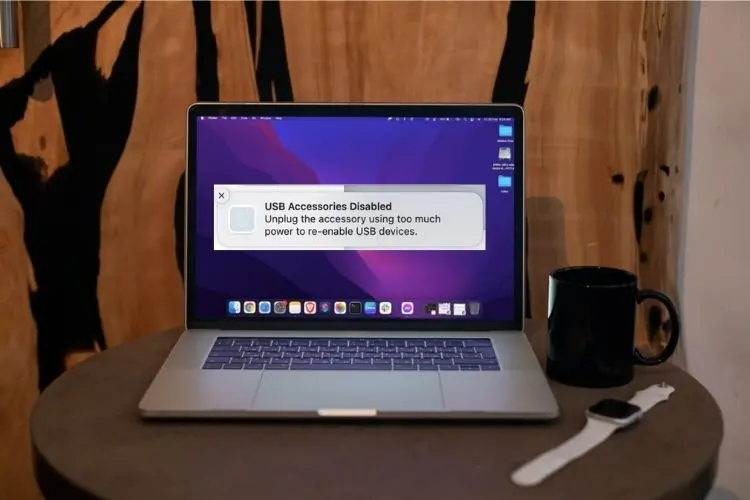
The “USB Accessories Disabled” warning is designed to prevent logic board damage, but seeing it pop up when your MacBook is bone-dry is incredibly frustrating. In my ten years supporting Mac environments, I see this false alarm triggered weekly by hidden lint micro-shorts or confused power management chips, not liquid. Follow the steps below, and we will safely clear the error and get your ports working again today.
Official Source: Apple Support – If a USB device doesn’t work with Mac
Why Are You Seeing This Error?
Understanding the physical trigger helps you prevent this from happening the next time you toss your laptop into a dusty backpack.
-
Physical Micro-Shorts: Pocket lint or dust compacted at the back of your USB-C port bridges the power pins. The Mac detects this electrical jump, assumes a short circuit, and kills power to the port to protect itself.
-
Frayed Peripheral Cables: An internally broken mouse or hard drive cable will draw irregular amounts of electrical current. macOS instantly shuts down the port if a device demands more milliamps than the port is rated to safely provide.
-
SMC Power State Glitches: The System Management Controller (the physical chip handling power distribution) can get stuck in a protective state after waking up from sleep, falsely flagging completely healthy devices as a threat.
Official Source: Apple Support – About USB on Mac computers
What You Need Before Starting
-
You will need a non-conductive tool, like a wooden or plastic toothpick. Never use a metal needle or paperclip inside a powered port.
-
A bright flashlight or a phone camera with the flash turned on to inspect the depths of the USB-C slots.
-
Unplug the MacBook from the wall charger entirely so the chassis is not actively pulling high-voltage power while we work.
Official Source: Apple Support – How to clean your Apple products
Step-by-Step Solutions (Ranked Easiest to Hardest)
Method 1: Peripheral and Cable Isolation
In my experience, users often blame the Mac when a $10 damaged USB hub is actually triggering the protection circuit.
-
Unplug every single device, hub, external monitor, and charger from your MacBook.
-
Click the Apple logo in the top left, select Restart, and let the Mac boot up completely empty.
-
Plug the official Apple wall charger directly into the port. Wait 30 seconds to see if the error appears.
-
Plug in your accessories one by one, waiting 30 seconds between each. Whichever device triggers the pop-up is the hardware pulling too much power. Throw that cable or hub away.
Official Source: Apple Support – Resolve USB-C port issues
Method 2: Non-Conductive Port Cleaning
If the error triggers even with nothing plugged in, compacted debris is likely shorting the connection pins.
-
Turn off your MacBook completely by clicking the Apple logo and selecting Shut Down.
-
Shine your flashlight directly into the problematic USB-C port. Look for a grey or black pad of compressed lint at the very back.
-
Take your wooden or plastic toothpick and gently scrape the deepest edge of the port, moving in an oval around the center pin.
-
Pull out any debris and blow firmly into the port to clear loose dust.
-
Turn the Mac back on and test the connection.
Official Source: Apple Support – Check ports and connections on Mac
Method 3: Reset the System Management Controller (SMC)
If the port is spotless, the chip controlling power delivery is stuck in a false-positive safety loop.
-
For Apple Silicon (M1/M2/M3) Macs: Simply click the Apple logo, select Shut Down, close the lid, and wait exactly 30 seconds. Open the lid and press the Power button. Apple Silicon resets its power states automatically upon a cold boot.
-
For Intel Macs:
-
Click the Apple logo and select Shut Down.
-
Press and hold Shift + Control + Option on the left side of the built-in keyboard, then press and hold the Power button at the same time.
-
Hold all four keys for exactly 10 seconds.
-
Release all keys simultaneously, then press the Power button to turn the Mac on.
-
Official Source: Apple Support – Reset the SMC of your Mac
Method 4: Clear OS Caches via Safe Mode
Sometimes a third-party software driver for a drawing tablet or dock forces an erratic power draw. Safe mode strips these away.
-
Click the Apple logo and select Shut Down.
-
For Apple Silicon: Press and hold the Power button until you see “Loading startup options.” Select your main drive, hold down the Shift key, and click Continue in Safe Mode.
-
For Intel: Turn on your Mac and immediately press and hold the Shift key until you see the login window.
-
Log in and test your USB devices. If they work perfectly, a background software driver is causing your issue. Click the Apple logo and select Restart to boot normally and clear the system caches.
Official Source: Apple Support – Use safe mode on your Mac
Frequently Asked Questions (FAQ)
Why does the warning say “unplug the accessory” when nothing is plugged in? The MacBook’s power sensors cannot easily tell the difference between a high-draw external hard drive and a piece of conductive debris bridging the 5-volt power pins. Any electrical short inside the port will trigger the exact same warning dialog.
Official Source: Apple Support – About Mac power adapters and over-current protection
Can this error mean my logic board is permanently dead? It is highly unlikely. The fact that you are seeing this warning means the MacBook’s over-current protection circuit is working exactly as designed—it successfully killed power to the port before any permanent electrical damage could reach the logic board.
Official Source: Apple Support – Mac hardware and power specifications
How to Verify the Fix
Plug your highest-power accessory (like a multi-port hub or an external hard drive) into the problematic port, check the top right corner of your screen for notifications, and confirm the device connects instantly without the power warning popping up.
Official Source: Apple Support – Check System Information on Mac