How to Fix Discord Screen Share Audio Not Working for Viewers?
You are streaming a game or a movie to your friends on Discord, but they are sitting in dead silence. In my ten years resolving application conflicts on the IT helpdesk, I see this happen constantly. The issue is rarely a broken microphone or a bad sound card; it is almost always caused by how Discord is allowed to hook into the audio stream of your active windows. Follow the steps below, and we will route the sound correctly to your viewers today.
Official Source: Discord Support – Screen Share with Audio
Why Are You Seeing This Error?
Understanding the technical trigger helps you avoid the dead-air problem the next time you boot up a new game for your friends.
-
Wrong Capture Mode: Windows architecture physically prevents Discord from capturing audio if you choose to share your entire monitor screen. Discord can only hook into the audio pipeline of a specific, targeted application window.
-
Permission Blocks: If the game or application you are trying to share is running with higher system privileges (Administrator) than Discord, the Windows operating system actively blocks Discord from reading the application’s audio output for security reasons.
-
Subsystem Clashes: Discord updates frequently, and its “Latest” background audio subsystem often conflicts with older sound card drivers or specific game engines, causing the audio pipeline to silently crash while the video continues to stream perfectly.
Official Source: Discord Support – Voice and Video Troubleshooting Guide
What You Need Before Starting
-
You must be logged into a Windows Administrator account so we can elevate Discord’s system permissions.
-
Have a friend sitting in a Discord voice channel ready to confirm when the audio starts broadcasting.
-
Have the target application (the game or web browser you want to share) open, running, and actively playing sound in the background so Discord can detect the audio engine.
Official Source: Microsoft Support – Run an app as administrator
Step-by-Step Solutions (Ranked Easiest to Hardest)
Method 1: Share the Application, Not the Screen
In my experience, 90% of user tickets regarding dead Discord audio are solved by simply clicking the correct tab in the sharing menu.
-
Join a Discord voice channel and click the Share Your Screen icon (the monitor with an arrow) in the bottom left corner.
-
Look at the top of the pop-up window. Do not select the “Screens” tab.
-
Click the Applications tab.
-
Click on the specific window of the game or browser you want to share.
-
Check the top right corner of the preview image to ensure the small Sound icon is not muted.
-
Click Go Live.
Method 2: Run Discord as Administrator
If you are sharing the application but the audio is still dead, your game is likely blocking Discord’s background audio hooks. We must elevate Discord to bypass the block.
-
Close Discord completely. Do not just click the X in the top right corner. You must click the up arrow in your Windows taskbar (bottom right), right-click the small Discord icon, and select Quit Discord.
-
Click the Windows Start menu and type Discord.
-
Right-click the Discord app in the search results and select Run as administrator.
-
Click Yes on the Windows security prompt.
-
Join your voice channel and start your application stream again.
Method 3: Force Discord to Recognize the Application
Sometimes, Discord’s auto-detection fails to realize the program you are running is capable of broadcasting audio. We have to manually add it to the internal registry.
-
Open Discord and click the User Settings gear icon in the bottom left corner, right next to your username.
-
Scroll down the left sidebar to the “Activity Settings” section and click on Registered Games.
-
Look for the blue text that says “Not seeing your game? Add it!” and click it.
-
Click the dropdown menu and select the application or browser you are trying to stream.
-
Click Add Game.
-
Close the settings menu, click the new Stream icon that appears next to the game name above your user profile, and go live.
Method 4: Reset and Tweak the Audio Subsystem
If the audio is crackling, dropping out, or completely failing despite running as an administrator, the internal audio engine is corrupted.
-
Open Discord and click the User Settings gear icon.
-
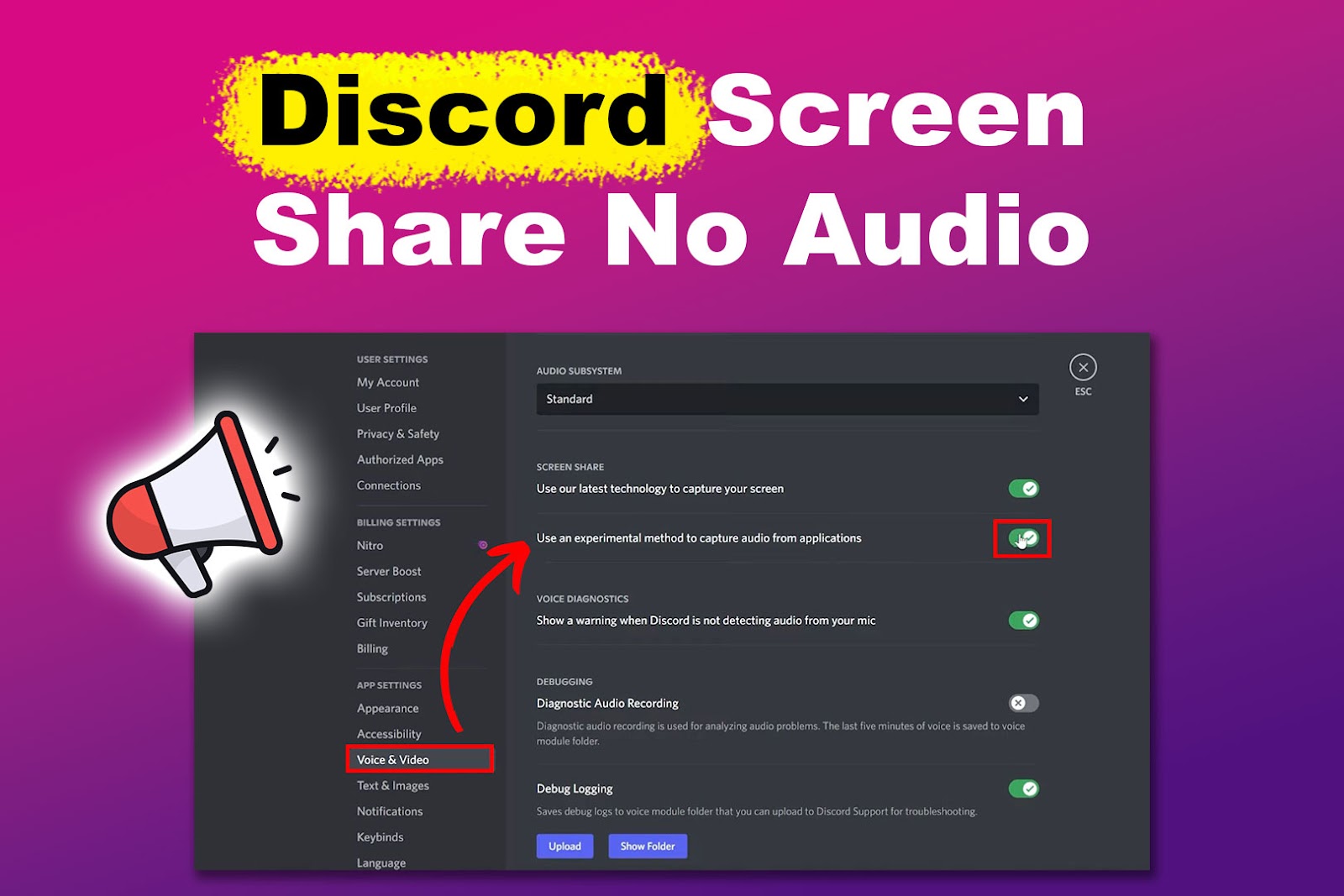
Click on Voice & Video in the left sidebar.
-
Scroll to the very bottom of the page and click the red Reset Voice Settings button. Click Okay to confirm.
-
Scroll back up slightly to the “Screen Share” section.
-
Ensure the toggle for Use an experimental method to capture audio from applications is turned On.
-
Scroll up to the “Audio Subsystem” dropdown menu. Change it from Standard to Legacy. Click Okay to confirm the restart.
Official Source: Discord Support – Advanced Voice Processing Settings
Frequently Asked Questions (FAQ)
Why does my audio work for games, but viewers hear nothing when I stream Netflix or Hulu on Google Chrome? This is caused by High-Bandwidth Digital Content Protection (HDCP), a copyright feature built into web browsers to stop users from pirating movies. To fix this, you must turn off hardware acceleration in your browser. In Chrome, click the Three Vertical Dots > Settings > System, toggle off Use graphics acceleration when available, and restart the browser.
Official Source: Google Chrome Help – Hardware acceleration in Chrome
I use a Mac. Why is the audio completely disabled no matter what I click? macOS has incredibly strict privacy systems that block internal audio routing by default. To share audio on a Mac, you must open Discord User Settings, go to Voice & Video, scroll down to the “Screen Share” section, and click Install under “Audio Capture Engine.” You will then have to open your Mac System Settings, go to Privacy & Security, and explicitly grant Discord permission to record system audio.
Official Source: Discord Support – Screen Share with Audio on macOS
How to Verify the Fix
Start your application stream in a Discord voice channel, hover your mouse over the active stream window, and confirm you do not see a yellow warning triangle indicating “Audio may not be available.” Ask your viewer to confirm the sound is coming through clearly.