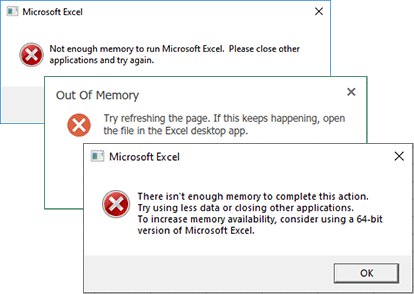
Seeing the “There isn’t enough memory to complete this action” error in Microsoft Excel instantly halts your workflow, often crashing the application and taking your unsaved data with it. In my ten years supporting corporate finance and data analytics teams, I see this happen weekly. Almost every time, the computer has plenty of physical RAM, but Excel is bottlenecked by software architecture limits or invisible phantom formatting. Follow the steps below, and we will remove the artificial memory caps and strip the bloat out of your spreadsheets today.
Official Source: Microsoft Support – “Out of memory” error messages in Excel
Why Are You Seeing This Error?
Understanding the technical limitations of Excel helps you build cleaner spreadsheets and prevents this crash from happening during your next massive data export.
-
The 32-Bit Memory Wall: By default, older Office installations use the 32-bit architecture. A 32-bit application can only utilize a strict maximum of 2GB of RAM, regardless of whether your computer has 16GB or 64GB of RAM installed. Once your spreadsheet hits that 2GB limit, Excel instantly throws the memory error and freezes.
-
Phantom Formatting: If you select an entire column and apply a color or a border, Excel applies that formatting to all 1,048,576 rows in that column. This forces Excel to hold over a million blank cells in active memory, causing massive file bloat and memory exhaustion.
-
Volatile Formulas: Functions like
INDIRECT,OFFSET,TODAY, andRANDrecalculate the entire workbook every single time you make a change to any cell. In large files, this constant recalculation queues up thousands of memory requests simultaneously, instantly overloading the application.
Official Source: Microsoft Learn – Excel performance: Performance and limit improvements
What You Need Before Starting
-
You must be logged into a Windows account with Administrator privileges if we need to modify the system registry or upgrade the Office installation.
-
Save and close all other open workbooks, and close heavy background applications like Google Chrome to free up as much physical RAM as possible.
-
Know your Microsoft 365 or Office account login credentials in case we need to download the 64-bit installer.
Official Source: Microsoft Support – Check your Office product key or account
Step-by-Step Solutions (Ranked Easiest to Hardest)
Method 1: Remove Phantom Formatting (The “Ctrl + End” Trick)
In my experience, users unintentionally bloat a 5MB spreadsheet into a RAM-eating monster by formatting empty space. We need to find the real end of your data and delete everything past it.
-
Open your heavy Excel file.
-
Press Ctrl + End on your keyboard. Excel will jump to what it considers the last active cell.
-
If this cell is hundreds of rows or columns past your actual data, you have phantom formatting.
-
Click the row number header of the first blank row directly beneath your actual data.
-
Press Ctrl + Shift + Down Arrow to highlight every single blank row down to the bottom of the sheet.
-
Right-click the highlighted row headers and select Delete.
-
Repeat this process for columns: click the first blank column header to the right of your data, press Ctrl + Shift + Right Arrow, right-click the headers, and select Delete.
-
Press Ctrl + S to save the file, then close and reopen Excel.
Official Source: Microsoft Support – Locate and reset the last cell on a worksheet
Method 2: Check and Upgrade to 64-Bit Excel
If your file is genuinely massive and clean of phantom formatting, you are likely hitting the 2GB limit of the 32-bit application. Upgrading allows Excel to use all the physical RAM installed in your computer.
-
Open Excel, click File, then click Account in the bottom left corner.
-
Click the About Excel button.
-
Look at the top line of the pop-up window. If it says 32-bit, you are artificially capped at 2GB of RAM.
-
Close all Office applications.
-
Go to office.com, log into your account, and click Install Office.
-
Select Other install options, choose the 64-bit version from the dropdown, and download the installer.
-
Run the installer. It will automatically overwrite your 32-bit version with the 64-bit version without deleting your personal files or settings.
Official Source: Microsoft Support – Choose between the 64-bit or 32-bit version of Office
Method 3: Disable Hardware Graphics Acceleration
Hardware acceleration attempts to offload visual rendering to your graphics card, but buggy display drivers frequently cause massive memory leaks when scrolling through heavy spreadsheets.
Note: Microsoft recently removed this toggle from the Excel settings menu in newer 365 builds, so we have to disable it via the Windows Registry.
-
Press the Windows key, type regedit, right-click Registry Editor, and select Run as administrator.
-
Using the left sidebar, follow this exact path:
HKEY_CURRENT_USER\SOFTWARE\Microsoft\Office\16.0\Common\Graphics(If the Graphics folder does not exist, right-click Common, select New > Key, and name it Graphics). -
Right-click any empty white space in the right-hand pane, select New, and choose DWORD (32-bit) Value.
-
Name the new file DisableHardwareAcceleration and press Enter.
-
Double-click DisableHardwareAcceleration, change the Value data to 1, and click OK.
-
Restart your computer.
Official Source: Microsoft Learn – Display issues in Office client applications
Method 4: Disable COM Add-ins
Third-party add-ins (like Adobe PDF makers, financial data scrapers, or heavy formatting tools) load directly into Excel’s memory space and frequently cause memory leaks.
-
Open Excel, click File, and select Options at the very bottom left.
-
Click Add-ins on the left sidebar.
-
At the bottom of the window, change the Manage dropdown to COM Add-ins and click Go.
-
Uncheck every single box in the list to disable them.
-
Click OK and restart Excel.
Official Source: Microsoft Support – View, manage, and install add-ins in Office programs
Method 5: Increase Windows Virtual Memory (Pagefile)
If you are running the 64-bit version of Excel but your computer only has 8GB of physical RAM, Windows will run out of system memory. Increasing the pagefile allows Windows to use your SSD as overflow RAM.
-
Press the Windows key, type Advanced system settings, and press Enter.
-
Under the Performance section, click the Settings button.
-
Click the Advanced tab at the top.
-
Under the Virtual memory section, click Change.
-
Uncheck Automatically manage paging file size for all drives.
-
Select your C: drive, click Custom size, and set both the Initial size and Maximum size to 16384 (which equals 16GB of overflow memory).
-
Click Set, click OK, and restart your computer.
Official Source: Microsoft Support – How to determine the appropriate page file size for 64-bit versions of Windows
Frequently Asked Questions (FAQ)
Why does a 50MB Excel file throw an out-of-memory error? The 50MB file size you see in Windows Explorer is heavily compressed. When you open that file in Excel, the software has to uncompress every cell, text string, and formula into active RAM. A heavily formatted 50MB file on disk can easily expand to consume 2GB or 3GB of active memory once fully loaded into the application.
Official Source: Microsoft Learn – Memory limits for Excel architecture
Will adding more physical RAM to my computer fix the problem? If you are running 32-bit Excel, buying more RAM is useless because the software is hard-coded to ignore anything above 2GB. You must upgrade to 64-bit Excel first. If you are already running 64-bit Excel and routinely hit 100% memory usage in the Windows Task Manager, then installing an upgrade from 8GB or 16GB of physical RAM up to 32GB will immediately solve the hardware bottleneck.
Official Source: Microsoft Support – Excel performance: Tips for optimizing performance obstructions
How to Verify the Fix
Open your heaviest, most problematic spreadsheet, type a new value into a cell referenced by multiple formulas, and press Enter. Monitor the bottom right corner of the Excel window to confirm the “Calculating Threads” percentage completes swiftly without locking the screen, freezing the mouse, or throwing the memory dialog box.