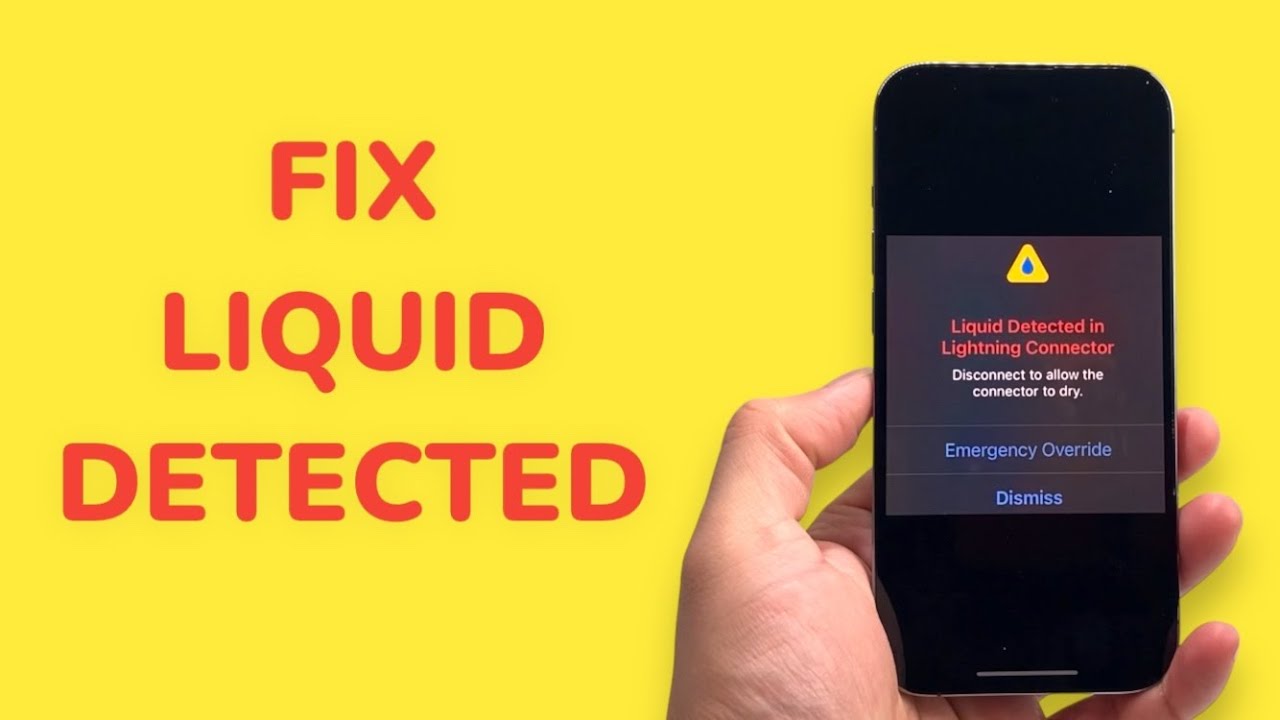
The “Liquid Detected in Lightning Connector” alert is built to save your iPhone’s logic board from a short circuit, but seeing it when your device is bone-dry is incredibly frustrating. In my ten years of diagnosing Apple hardware, I see this false positive daily—it is almost always triggered by compacted pocket lint absorbing ambient humidity or a burnt-out charging cable, not actual standing water. Follow the exact steps below, and we will safely clear the physical obstruction, reset the software sensor, and get your phone charging again today.
Official Source: Apple Support – If you see a liquid detection alert on your iPhone
Why Are You Seeing This Error?
Understanding the physical mechanics of the Lightning port helps you avoid this exact problem in the future. The iPhone relies on measuring electrical impedance across the eight pins inside the connector to detect shorts.
-
Pocket Lint Micro-Shorts: Dust and lint gather at the back of your Lightning port over months of use. When you take your phone into a high-humidity environment (like a bathroom during a shower), that compacted lint absorbs the moisture. This damp lint bridges the power pins, tricking the iOS sensor into detecting liquid.
-
Oxidized Cable Contacts: The gold contacts on your Lightning cable—specifically the power delivery pins—corrode over time. When you plug this degraded cable into the phone, the iPhone detects abnormal electrical resistance and throws the liquid warning as an automated safety mechanism.
-
Stuck iOS Impedance Sensor: The background software process that monitors the port’s electrical state sometimes gets stuck in a protective loop. Even after the physical port completely dries out, the software daemon refuses to clear the alert until the system memory is forcibly reset.
Official Source: Apple Support – About splash, water, and dust resistance of iPhone
What You Need Before Starting
-
A non-conductive, soft cleaning tool like a plastic dental pick or a wooden toothpick. Never use a metal paperclip, needle, or safety pin, as these will permanently short the active power pins.
-
A bright flashlight to clearly see all the way to the back wall of the Lightning port.
-
A brand-new, Apple-certified (MFi) Lightning cable to isolate the hardware variables.
-
Ensure your phone is completely unplugged from the wall adapter before inserting anything into the port.
WARNING: Never put your iPhone in a bag of rice or use a hair dryer to attempt to dry the port. Rice introduces microscopic starch dust into the chassis that acts like a concrete paste when mixed with high humidity, permanently destroying the charging pins. Hair dryers easily reach temperatures that melt the internal water-resistant adhesive seals and severely degrade the lithium-ion battery.
Official Source: Apple Support – How to clean your Apple products
Step-by-Step Solutions (Ranked Easiest to Hardest)
Method 1: Isolate the Cable and Power Adapter
In my experience, users spend hours aggressively cleaning their iPhone ports when the issue is actually a damaged $15 charging cable. We have to rule out the external hardware first.
-
Unplug your current Lightning cable from both the iPhone and the wall charging brick.
-
Inspect both sides of the Lightning cable tip under a bright light. Look closely at the fourth pin from either side. If it is black, missing, or heavily corroded, throw the cable away.
-
Plug a brand-new or known-working Lightning cable into a different wall power brick.
-
Plug the new cable into your iPhone.
-
Leave the phone sitting completely still on a flat surface for 60 seconds to see if the alert triggers.
Official Source: Apple Support – Identify counterfeit or uncertified Lightning connector accessories
Method 2: Perform a Non-Conductive Port Excavation
If a new cable still triggers the error, compacted debris at the base of the port is likely holding ambient moisture and bridging the connection.
-
Turn off your iPhone completely by holding the Power button and the Volume Down button, then sliding the slide to power off toggle.
-
Shine your flashlight directly down into the Lightning port. You are looking for a grey or black pad of compressed lint at the very bottom.
-
Insert your wooden toothpick or plastic dental pick into the port, pressing it gently against the back wall.
-
Scrape along the back wall from left to right, being very careful not to press against the gold pins located on the bottom face of the port.
-
Pull the debris out of the port. You will likely pull out a surprisingly large piece of pocket lint.
-
Blow firmly into the port to clear any remaining loose dust particles.
-
Turn the iPhone back on and test the charger.
Official Source: Apple Support – If your iPhone or iPod touch won’t charge
Method 3: Force Restart to Clear the Software Sensor Loop
If the port is absolutely spotless and you are using a new cable, the iOS software process that governs the liquid detection is likely frozen in a false-positive state. A hard restart dumps the active system memory and forces the sensor to recalibrate.
-
Quickly press and release the Volume Up button on the left side of the phone.
-
Quickly press and release the Volume Down button.
-
Press and hold the Power/Side button on the right side of the phone.
-
Ignore the “slide to power off” slider that appears on the screen. Keep holding the Power/Side button for roughly 10 to 15 seconds.
-
Release the button the exact moment you see the black screen and the white Apple logo flash on the display.
-
Wait for the phone to boot back to your lock screen, then plug in your Lightning cable.
Official Source: Apple Support – Force restart iPhone
Method 4: Use a Wireless Charger (The Safe Workaround)
If you urgently need to charge your phone but the port refuses to clear the alert, bypassing the Lightning port entirely is the safest temporary solution. The liquid detection sensor only monitors the physical port, leaving the induction coils completely active.
-
Obtain a Qi-certified wireless charging pad or an Apple MagSafe charger.
-
Plug the wireless charger into a wall outlet.
-
Place your iPhone directly onto the center of the wireless charging pad, ensuring there are no credit cards or thick metal cases between the phone and the charger.
-
Allow the phone to sit on the charger for a few hours. The ambient heat generated by the wireless charging process will often naturally evaporate any stubborn, microscopic moisture trapped deep inside the Lightning port.
Official Source: Apple Support – How to wirelessly charge your iPhone
Frequently Asked Questions (FAQ)
Should I use the Emergency Override button? When you connect a cable and the liquid detection alert appears, you will see an “Emergency Override” option. I highly recommend only pressing this in a true emergency situation where you must make a phone call and have absolutely no battery left. If there is actual moisture bridging the pins, forcing power through the port will send an electrical arc across the water, which will instantly fry the pins and permanently kill the charging port.
Official Source: Apple Support – Water and other liquid damage to iPhone or iPod isn’t covered by warranty
Why does the warning only appear in my car? Car chargers are notoriously prone to voltage fluctuations and temperature extremes. If your Lightning cable lives in your car, the extreme summer heat and winter cold rapidly degrade the rubber shielding and the metal contacts, causing electrical resistance that triggers the liquid sensor. Replace your car’s charging cable.
Official Source: Apple Support – Keeping iPhone, iPad, and iPod touch within acceptable operating temperatures
How to Verify the Fix
Plug your iPhone into a certified wall adapter, lock the screen, and wait 60 seconds to confirm the device steadily gains battery percentage without the screen waking up to display the yellow hazard warning.
Official Source: Apple Support – Check the battery charge level of your iPhone