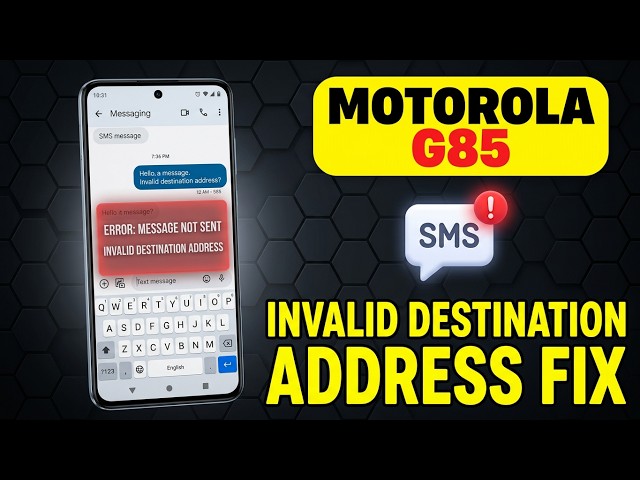
The “Invalid Destination Address” error means your carrier’s network rejected your text message because the phone number formatting is broken or the network configuration is scrambled. In my ten years of fixing mobile networks, I see this constantly when an area code is dropped by a carrier update or an old text thread corrupts. Follow the steps below, and we will get your messages sending again in minutes.
Official Source: Google Messages Help – Fix problems sending or receiving messages
Why Are You Seeing This Error?
Understanding the technical root cause helps you fix this faster if it happens with another contact in the future.
-
Malformed Phone Numbers: Your contact’s saved phone number is missing an area code, has hidden special characters, or lacks the necessary country code (+1 for the US) required by your carrier’s current routing rules.
-
Corrupted SMS/MMS Thread: Background data linking your specific message thread to the recipient has broken, causing the messaging app to attempt sending the text to a blank or invalid internal ID.
-
Outdated Carrier Services: The background system app responsible for bridging your phone’s software with your mobile carrier’s cell towers has a glitch or needs a mandatory update.
Official Source: Android Help – Fix mobile network connection issues
What You Need Before Starting
-
The exact, full 10-digit phone number of the person you are trying to text.
-
A stable Wi-Fi connection, in case we need to update your carrier software through the Google Play Store.
-
Your phone unplugged and resting in your hand, unlocked and on the home screen.
Official Source: Google Play Help – Update your Android apps
Step-by-Step Solutions (Ranked Easiest to Hardest)
Method 1: Delete and Recreate the Conversation Thread
In my experience, the messaging app’s internal database often corrupts a specific thread. Wiping the thread forces a fresh network handshake.
-
Open your default Messages app.
-
Find the text conversation with the person you cannot message.
-
Tap and hold your finger on the conversation until a menu or checkmark appears.
-
Tap the Trash can icon (or select Delete) to completely erase the thread.
-
Tap Start chat (or the new message icon), manually type out their full 10-digit phone number (including area code), and send a test message.
Official Source: Google Messages Help – Delete or archive conversations
Method 2: Update the Carrier Services App
This hidden system app controls how your phone talks to cellular towers. If it falls out of date, texts will instantly fail.
-
Open the Play Store app.
-
Tap your Profile picture in the top right corner.
-
Tap Manage apps & device.
-
Tap Updates available.
-
Scroll through the list and look for Carrier Services or Google Messages. If either is listed, tap Update right next to it.
-
Restart your phone once the update finishes.
Official Source: Google Play Store – Carrier Services Application
Method 3: Clear the Messages App Cache and Data
Flushing the messaging app’s temporary memory clears out hidden configuration bugs causing the invalid address error.
-
Open your phone’s Settings app.
-
Tap Apps (or Apps & notifications), then select See all apps.
-
Scroll down and tap on your default Messages app.
-
Tap on Storage & cache.
-
Tap Clear cache.
-
Next, tap Clear storage (or Clear data) and tap OK to confirm. (Note: This will not delete your actual text messages, just the app’s settings.)
Official Source: Google Android Help – Free up space and clear cache
Method 4: Reset Wi-Fi, Mobile & Bluetooth Settings
If the above steps fail, the phone’s internal routing table is scrambled. We have to reset the cellular radio configurations back to factory defaults.
-
Open the Settings app and scroll down to System (or General management on Samsung devices).
-
Tap Reset options (you might need to tap Advanced first).
-
Tap Reset Wi-Fi, mobile & Bluetooth (or Reset network settings).
-
Tap the Reset settings button and enter your screen lock PIN if prompted.
-
Tap Reset to confirm, then restart your phone.
Official Source: Google Android Help – Reset your Android device settings
How to Verify the Fix
Open your Messages app, type a short text to the contact that was previously failing, and confirm the message status changes from “Sending” to “Delivered” or “Sent” without the error popup.
Official Source: Google Messages Help – Check message delivery status