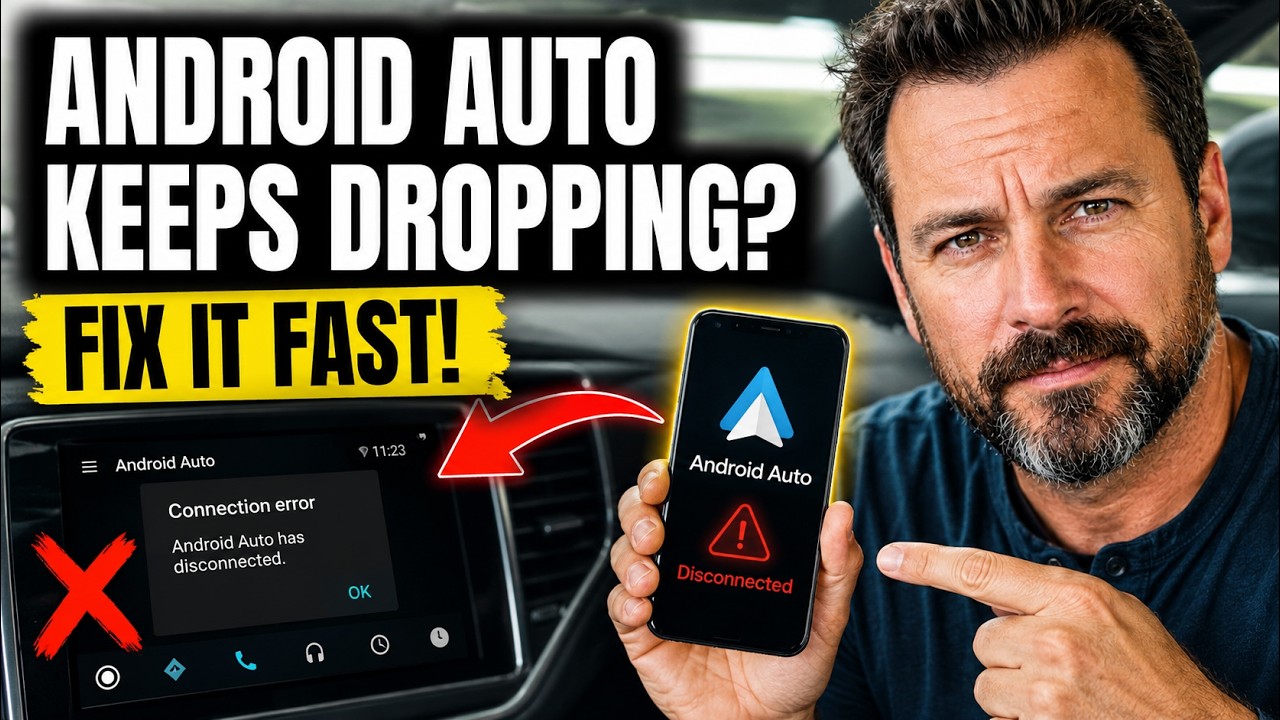
Having Android Auto drop your map right as you approach a complicated highway exit is a massive headache. In my ten years dealing with mobile-to-vehicle bridging, I see these random disconnects caused almost entirely by aggressive phone power management or micro-frays in the data cable, not a broken car stereo. Follow the steps below, and we will lock in a stable connection for your next drive.
Official Source: Google Android Auto Help – Fix Android Auto connection issues
Why Are You Seeing This Error?
Understanding the physical or software trigger helps you prevent the dropouts from coming back.
-
Degraded USB Data Lines: Charging a phone only requires two active pins inside the cable, but Android Auto requires all data pins to maintain a perfect sync. A slight bend in the cable will break the data stream while still showing the phone as “charging,” causing a sudden disconnect.
-
Aggressive Battery Optimization: Often, I see this happen when your Android phone’s battery manager assumes the background maps and music processes are draining too much power and forcibly puts the Android Auto app to sleep mid-drive.
-
Corrupted Cache Data: Temporary file buildup inside the Android Auto app or the Google Play Services framework causes the software to choke during heavy data transfers.
Official Source: Google Android Auto Help – Can’t connect or stay connected to Android Auto
What You Need Before Starting
-
A high-quality, high-speed USB data cable that is under 3 feet (1 meter) long. Extension cables or gas station charging cords will not work.
-
Your car parked with the engine running or in accessory mode so the stereo is fully powered.
-
Your phone unlocked and unplugged from the vehicle while we change the internal settings.
Official Source: Google Android Auto Help – Choose the best USB cable for Android Auto
Step-by-Step Solutions (Ranked Easiest to Hardest)
Method 1: The Short Cable Swap
In my experience, 80% of random disconnects are solved by throwing away the old, worn-out cable in your center console.
-
Unplug your current cable from both the phone and the car’s USB port.
-
Plug in a brand-new, thick data cable that is explicitly rated for 10Gbps data transfer.
-
Ensure the cable is shorter than 3 feet. The longer the cable, the higher the chance of data packet loss due to vehicle vibrations.
Official Source: Google Support Community – Cable recommendations for stable connection
Method 2: Set Android Auto to Unrestricted Battery Usage
If the cable is good, your phone is likely choking the app to save battery. We need to tell the system to leave Android Auto alone.
-
Open your phone’s Settings app.
-
Tap on Apps, then select See all apps.
-
Scroll down and tap on Android Auto.
-
Scroll down and tap on Battery (or App battery usage).
-
Change the setting from “Optimized” to Unrestricted.
-
Go back to the main app list, find Maps, and change its battery setting to Unrestricted as well.
Official Source: Google Android Help – Manage battery usage for apps
Method 3: Clear the App Cache and Storage
Wiping the corrupted temporary files forces the app to rebuild a clean connection with your car’s stereo.
-
Open Settings, tap Apps, and select See all apps.
-
Tap on Android Auto.
-
Tap on Storage & cache.
-
Tap the Clear cache button.
-
Next, tap the Clear storage (or Clear data) button and hit OK to confirm.
-
Reconnect your phone to your car. You will have to go through the initial Android Auto setup screens on your phone one more time.
Official Source: Google Android Help – Free up space and clear cache
Method 4: Force the Default USB Configuration
Sometimes the phone defaults to “Charging Only” when you hit a bump, killing the data link. We can lock the port into data mode using Developer Options.
-
Open Settings, scroll to the very bottom, and tap About phone.
-
Scroll down to the Build number and tap it 7 times rapidly to enable Developer Mode. (Enter your PIN if prompted).
-
Go back to the main Settings menu, tap System, and select Developer options.
-
Scroll roughly halfway down to the “Networking” section and tap Default USB configuration.
-
Change the selection to File Transfer / Android Auto.
-
Restart your phone.
Official Source: Android Developers – Configure on-device developer options
Frequently Asked Questions (FAQ)
Does buying a wireless Android Auto adapter fix this? Yes, but only if your original issue was a physical port or cable problem. If your phone’s battery optimization is killing the app, a wireless adapter will still randomly disconnect until you complete Method 2.
Official Source: Google Android Auto Help – Use Android Auto wireless on your car display
Why does it disconnect exactly when I hit a pothole or bump? This points entirely to physical wear and tear. Either the USB cable pins are worn flat, or the internal charging port on your phone is loose from years of use. Clean your phone’s charging port gently with a wooden toothpick.
Official Source: Google Pixel Help – Clean your phone’s USB-C port
How to Verify the Fix
Plug your phone into the car, start an active route on Google Maps, play music, and gently wiggle the cable at the phone’s charging port to confirm the screen does not drop or freeze under physical movement.
Official Source: Google Android Auto Help – Set up Android Auto