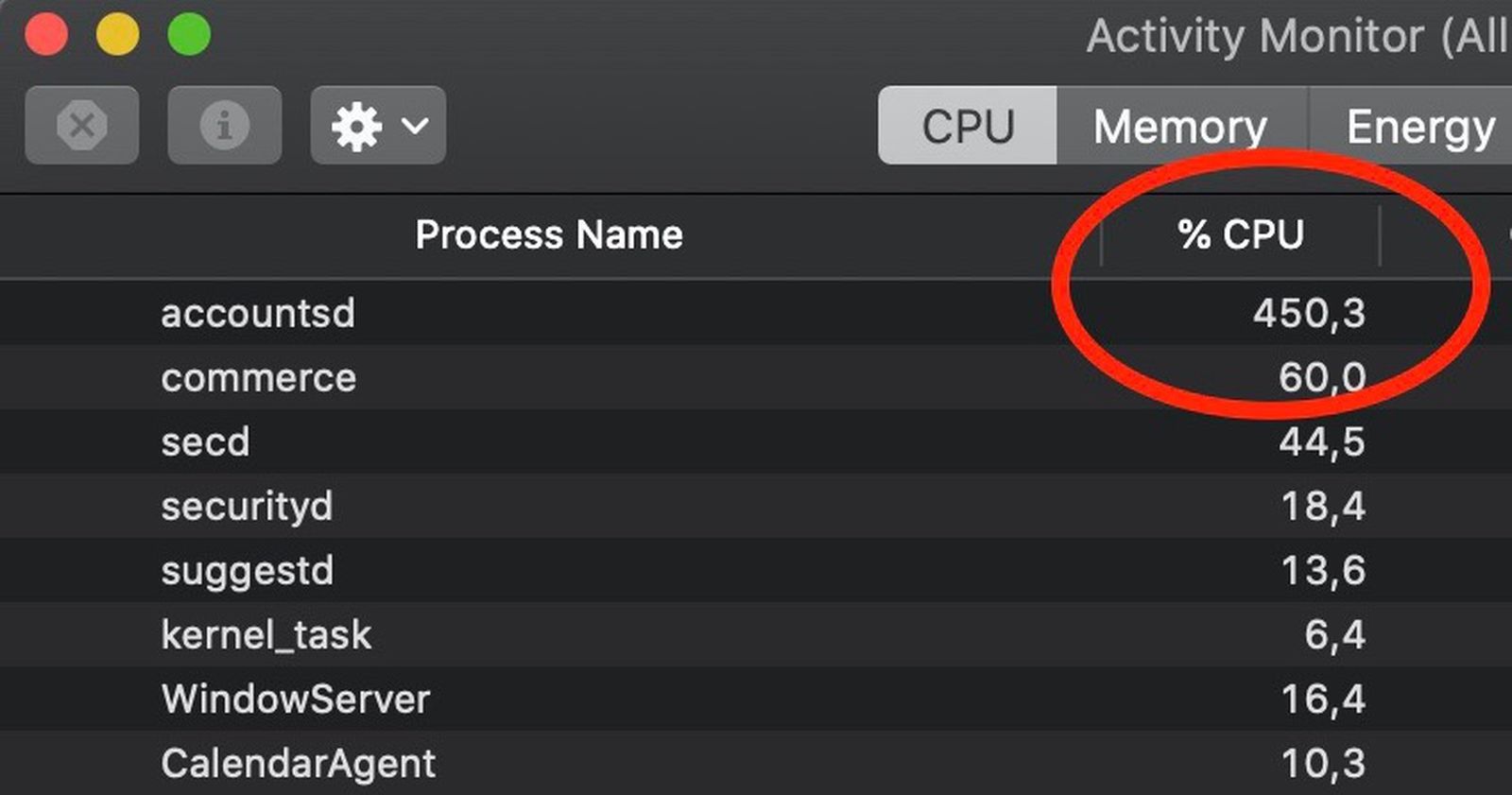
“Accountsd” is the macOS background service responsible for managing your Apple ID and syncing external accounts, but a broken sync loop can force it to consume 100% of your CPU and kill your battery in a matter of hours. In my ten years dealing with Mac support, I see this process hang constantly right after a user changes a password or installs an OS update. Follow the steps below, and we will force the service to reset and stop draining your hardware today.
Official Source: Apple Support – View CPU activity in Activity Monitor on Mac
Why Are You Seeing This Error?
Understanding the root cause helps you figure out which account or application is triggering the CPU spike.
-
Corrupted iCloud Keychain Tokens: The accountsd process gets stuck in an infinite loop trying to authenticate a damaged or outdated password token stored in your system Keychain.
-
Mail App Sync Failures: Often, I see this happen when an external email account (like Gmail or an Exchange server) changes its security protocols, causing Apple’s Mail app to constantly ping the remote server without success.
-
Stuck iCloud Drive Uploads: A large file or corrupted folder stuck in the iCloud upload queue will force accountsd to run at maximum power trying to push the fragmented data through the network.
Official Source: Apple Support – If your Mac battery runs out of charge quickly
What You Need Before Starting
-
You must know your current Apple ID email and password, as the final step requires signing completely out of your account.
-
Save all your open work and close any active email drafts.
-
Plug your MacBook directly into the wall charger, as your battery is likely heavily depleted from the CPU drain and you do not want it dying mid-repair.
Official Source: Apple Support – Manage your Apple ID settings on Mac
Step-by-Step Solutions (Ranked Easiest to Hardest)
Method 1: Force Quit the Accountsd Process
Killing the process clears its active memory, which immediately stops the battery drain and allows macOS to restart the service cleanly in the background.
-
Press Command + Spacebar to open Spotlight, type Activity Monitor, and press Return.
-
Click on the CPU tab at the top of the window.
-
Click the Search bar in the top right corner and type accountsd.
-
Select the accountsd process from the list, then click the X button located at the top toolbar of the window.
-
Click Force Quit on the pop-up warning.
-
Watch the list for a few seconds to ensure the process restarts at a normal CPU percentage.
Official Source: Apple Support – Quit an app or process in Activity Monitor on Mac
Method 2: Toggle Your iCloud Sync Settings
If the process spikes again after force-quitting, we need to interrupt the specific service causing the loop by turning it off and back on.
-
Click the Apple logo in the top left corner of your screen and select System Settings (or System Preferences on older versions).
-
Click on your Apple ID name at the top of the left sidebar.
-
Click on iCloud.
-
Look for iCloud Drive and toggle the switch to the Off position.
-
Find Mail in the same list and toggle the sync Off as well.
-
Restart your Mac, return to this exact menu, and toggle both switches back On to force a fresh handshake with Apple’s servers.
Official Source: Apple Support – Change iCloud settings on Mac
Method 3: Rebuild the Local Accounts SQLite Database
In my experience, a corrupted local database file is the number one reason accountsd loops endlessly. Renaming the file forces macOS to build a brand new, clean database.
-
Click on any empty space on your desktop to bring up the Finder menu at the very top of the screen.
-
Click on Go in the top menu bar, hold down the Option key on your keyboard, and click on the hidden Library folder that appears.
-
Open the folder named Accounts.
-
Look for a file named Accounts4.sqlite (it might also be named Accounts3.sqlite depending on your macOS version).
-
Right-click the file, select Rename, and change the name to Accounts4.sqlite.old.
-
Restart your Mac immediately.
Official Source: Apple Support – Stop sharing folders or files on Mac (Note: Database rebuilds follow standard Apple file management safety protocols)
Method 4: Sign Completely Out of Your Apple ID
If the database rebuild fails, the authentication token stored on Apple’s servers is mismatched with your hardware. We have to sever the connection entirely.
-
Click the Apple menu and open System Settings.
-
Click on your Apple ID name.
-
Scroll to the very bottom of the right-hand panel and click Sign Out.
-
A prompt will ask if you want to keep a copy of your iCloud data on this Mac. Check the boxes for Contacts, Calendars, and Safari passwords so you don’t lose local access.
-
Wait for the sign-out process to finish completely.
-
Restart your computer, open System Settings, and sign back in using your Apple ID credentials.
Official Source: Apple Support – Sign out of iCloud on your Mac
Frequently Asked Questions (FAQ)
Will force-quitting accountsd delete my passwords or files? No. Force-quitting the process simply tells your Mac’s processor to drop the frozen task and reload it. It does not erase any data, saved passwords, or personal files stored on your hard drive.
Official Source: Apple Support – How to force an app to quit on your Mac
Why is my MacBook getting so hot and the fans running so loud? The accountsd process is maxing out your CPU, which generates intense physical heat. To protect the motherboard, your Mac’s fans spin at maximum speed. Once you kill the stuck process using the steps above, the fans will spin down, and the chassis will cool off within five minutes.
Official Source: Apple Support – Keep your Mac notebook within acceptable operating temperatures
How to Verify the Fix
Open Activity Monitor, type accountsd into the search bar, and confirm that the “% CPU” column is steadily sitting below 5% while your Mac is idling on the desktop.
Official Source: Apple Support – See how apps affect Mac performance, battery runtime, and temperature