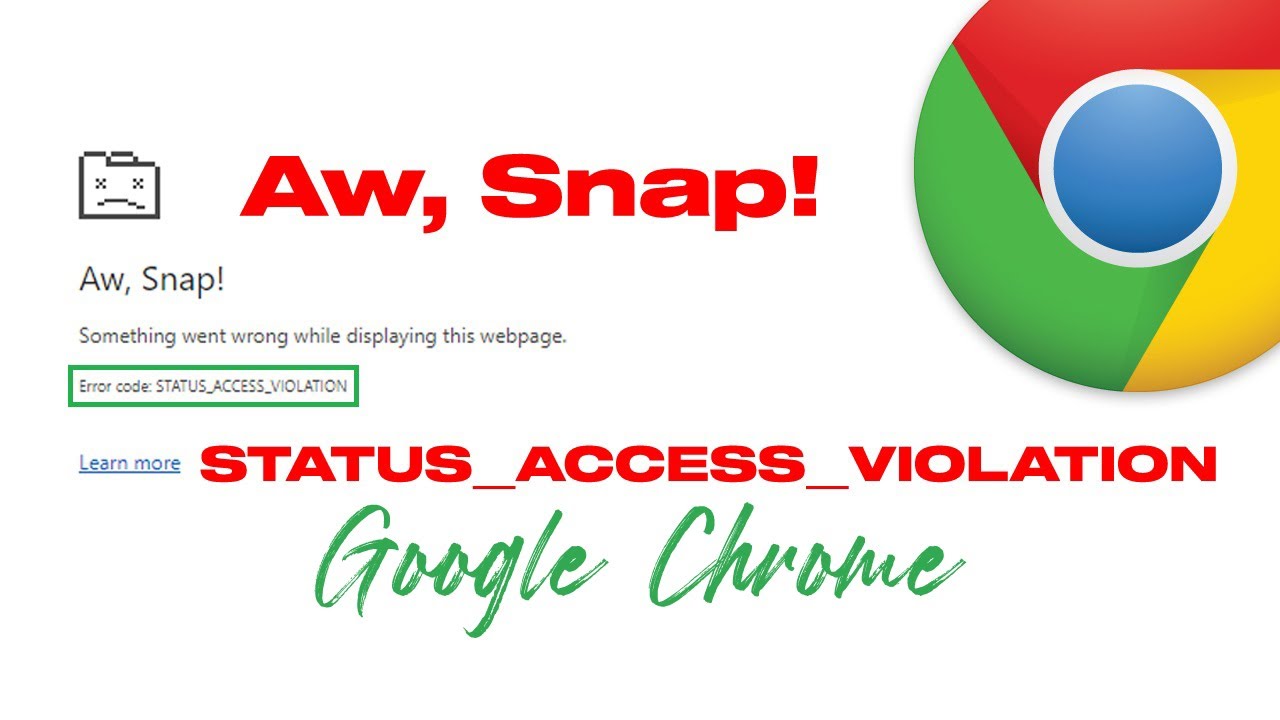
The Status_Access_Violation error happens when Google Chrome tries to access a block of system memory it does not have permission to read or write. In my decade on the IT helpdesk, I see this instantly kill active browser tabs, usually immediately after a Windows update or a silent antivirus patch. Follow the steps below, and we will bypass the memory block and get your browser stable today.
Official Source: Google Chrome Help – Fix “Aw, Snap!” page crashes
Why Are You Seeing This Error?
Understanding the technical trigger helps you figure out exactly which background software is aggressively shutting down your browser.
-
Aggressive Antivirus Hooks: Third-party security software (like Symantec, Bitdefender, or McAfee) heavily monitors browser memory. If the antivirus intercepts Chrome’s memory request and delays the response by even a millisecond, Chrome assumes the memory is permanently blocked and intentionally crashes the tab to prevent data loss.
-
Renderer Code Integrity Conflicts: Windows 10 and 11 use a security feature to prevent unsigned code from modifying Chrome’s rendering engine. If an older browser extension attempts to inject unsigned code into the page, the tab dies instantly.
-
Corrupted Chrome Profile: Your local user data (history, cookies, saved logins) is stored in a massive background SQL database. If a single sector of that database corrupts due to a sudden power loss, Chrome will trigger an access violation the moment it tries to read that specific file.
Official Source: Google Chrome Enterprise – Chrome browser memory management
What You Need Before Starting
-
Save any open work in your other functioning software, as we will be force-closing the browser and potentially restarting your PC.
-
You must be logged into a Windows account with Administrator privileges to modify Chrome’s launch parameters.
-
Have your Google account password ready in case we need to rebuild your local browser profile.
Official Source: Microsoft Support – Managing user accounts in Windows
Step-by-Step Solutions (Ranked Easiest to Hardest)
Method 1: Isolate Conflicting Extensions in Incognito Mode
Extensions are the most common source of unauthorized memory requests. We need to isolate them without deleting them.
-
Click the Three Vertical Dots in the top right corner of Chrome.
-
Select New Incognito window.
-
Browse to the exact website that previously crashed. If it loads perfectly, a background extension is your culprit.
-
Go back to your normal Chrome window, click the Three Vertical Dots, hover over Extensions, and click Manage Extensions.
-
Toggle all extensions to the Off position.
-
Turn them back on one by one, refreshing the broken web page each time to identify the exact add-on causing the crash.
Official Source: Google Chrome Help – Install and manage extensions
Method 2: Disable Renderer Code Integrity
If the browser crashes before you can even open the settings menu, we have to force Windows to stop blocking Chrome’s background rendering engine.
-
Right-click the Google Chrome shortcut on your desktop and select Properties.
-
Click the Shortcut tab at the top.
-
Find the Target field. It will look similar to this:
"C:\Program Files\Google\Chrome\Application\chrome.exe" -
Click at the very end of the text path, press the Spacebar exactly once, and type:
--disable-features=RendererCodeIntegrity -
Click Apply, then OK.
-
Double-click that specific desktop shortcut to launch Chrome and test your tabs.
Official Source: Google Chrome Enterprise – Command Line Switches
Method 3: Rename the Chrome Executable
If an aggressive antivirus is hard-coded to block the specific file named “chrome.exe”, simply renaming the file tricks the security software into leaving the browser alone.
-
Press the Windows key + E to open File Explorer.
-
Navigate exactly to C:\Program Files\Google\Chrome\Application.
-
Find the file named chrome (or chrome.exe depending on your view settings).
-
Right-click the file, select Rename, and change it to chrome1 (or chrome1.exe).
-
Right-click the newly named chrome1 file, hover over Send to, and select Desktop (create shortcut).
-
Delete your old desktop shortcut and use the new one moving forward.
Official Source: Microsoft Learn – Troubleshooting application conflicts in Windows
Method 4: Rebuild the Chrome User Profile
If the crash only happens on your specific user account but works fine for a guest profile, your local database is completely corrupted and must be rebuilt.
-
Close Google Chrome entirely.
-
Press the Windows key + R to open the Run dialog box.
-
Type
%LOCALAPPDATA%\Google\Chrome\User Dataand press Enter. -
Scroll down until you find the folder named Default.
-
Right-click the Default folder and select Rename. Name it Default.old.
-
Open Google Chrome. The browser will instantly create a brand new, uncorrupted Default folder in the background.
-
Log back into your Google account to sync your bookmarks and passwords safely.
Official Source: Google Chrome Help – Share Chrome with others
Frequently Asked Questions (FAQ)
Does this error mean my physical RAM is failing? No. While Status_Access_Violation is technically a memory error, it is almost exclusively a software-level permission block. If your physical RAM sticks were failing, your entire Windows operating system would crash to a Blue Screen of Death (BSOD), rather than isolating the crash to just a single Chrome tab.
Official Source: Microsoft Support – Diagnosing memory problems on your computer
Will renaming the Default folder delete my bookmarks? It temporarily hides them from the local browser, but it does not permanently delete them. As soon as you open the fresh Chrome instance and sign back into your Google account, all your synced bookmarks, passwords, and history will download directly from the cloud.
Official Source: Google Chrome Help – Get your bookmarks, passwords and more on all your devices
How to Verify the Fix
Open Chrome, load a heavy media website, open ten new tabs simultaneously, and confirm the browser handles the heavy memory load without throwing the “Aw, Snap!” crash page.
Official Source: Google Chrome Help – Fix page crashes and other errors