Windows 11 Bluetooth audio stuttering usually happens when your PC’s wireless radio gets overwhelmed by conflicting signals or power-saving features choking the connection. In my ten years on the IT helpdesk, I see this daily—it ruins your music and calls, but it is entirely fixable without buying a new headset. Follow the steps below, and we will lock in a crystal-clear connection today.
Official Source: Microsoft Support – Fix Bluetooth problems in Windows
Why Are You Seeing This Error?
Understanding the root cause helps you avoid the problem the next time you pair a new device to your setup.
-
Aggressive Power Management: Windows 11 tries to save battery by constantly putting the Bluetooth adapter to sleep in the background, causing micro-stutters when it wakes back up to process audio.
-
Hands-Free Telephony Conflict: Windows defaults to a low-quality, two-way audio profile intended for phone calls. If a background app pings your microphone, the audio bandwidth drops and the sound chops up instantly.
-
Signal Interference: Your Bluetooth and Wi-Fi share the same 2.4GHz frequency on the motherboard. Heavy network traffic or downloading files can literally crowd the airwaves and fragment your audio stream.
Official Source: Microsoft Learn – Bluetooth audio quality and stuttering troubleshooting
What You Need Before Starting
-
You must be logged into an Administrator account to change power management settings in the Device Manager.
-
Keep your wireless headphones turned on, actively connected, and resting near your computer while we work.
-
Close communication apps like Teams, Zoom, or Discord that might be quietly holding your microphone open in the background.
Official Source: Microsoft Support – Pair a Bluetooth device in Windows
Step-by-Step Solutions (Ranked Easiest to Hardest)
Method 1: Stop Windows from Putting Bluetooth to Sleep
In my experience, Windows throttling power to the wireless radio is the biggest culprit for random audio drops. We need to force it to stay awake.
-
Press the Windows key + X and select Device Manager.
-
Click the arrow next to Bluetooth to expand the list.
-
Right-click your primary Bluetooth adapter (usually named Intel Wireless Bluetooth, Realtek, or Qualcomm) and click Properties.
-
Click on the Power Management tab at the top.
-
Uncheck the box that says Allow the computer to turn off this device to save power.
-
Click OK.
Official Source: Microsoft Learn – Power Management for Bluetooth Devices
Method 2: Disable Audio Enhancements
Hidden spatial audio and enhancement settings frequently bottleneck the data stream sent to your headphones, causing the audio engine to stutter.
-
Press the Windows key + I to open Settings.
-
Click on System in the left sidebar, then click on Sound.
-
Scroll down and click directly on your connected Bluetooth headphones under the “Output” section.
-
Scroll to the Audio enhancements section and click the dropdown menu.
-
Select Off.
-
Toggle Spatial audio to Off right beneath it.
Official Source: Microsoft Support – Disable audio enhancements in Windows
Method 3: Disable Handsfree Telephony
If your audio sounds muffled and choppy at the same time, Windows is forcing a two-way call profile instead of high-fidelity stereo. Turning this off fixes the audio, but note that your headset’s built-in microphone will be disabled.
-
Press the Windows key, type Control Panel, and press Enter.
-
Change the “View by” setting in the top right to Large icons, then click Devices and Printers.
-
Click on Devices to view your hardware.
-
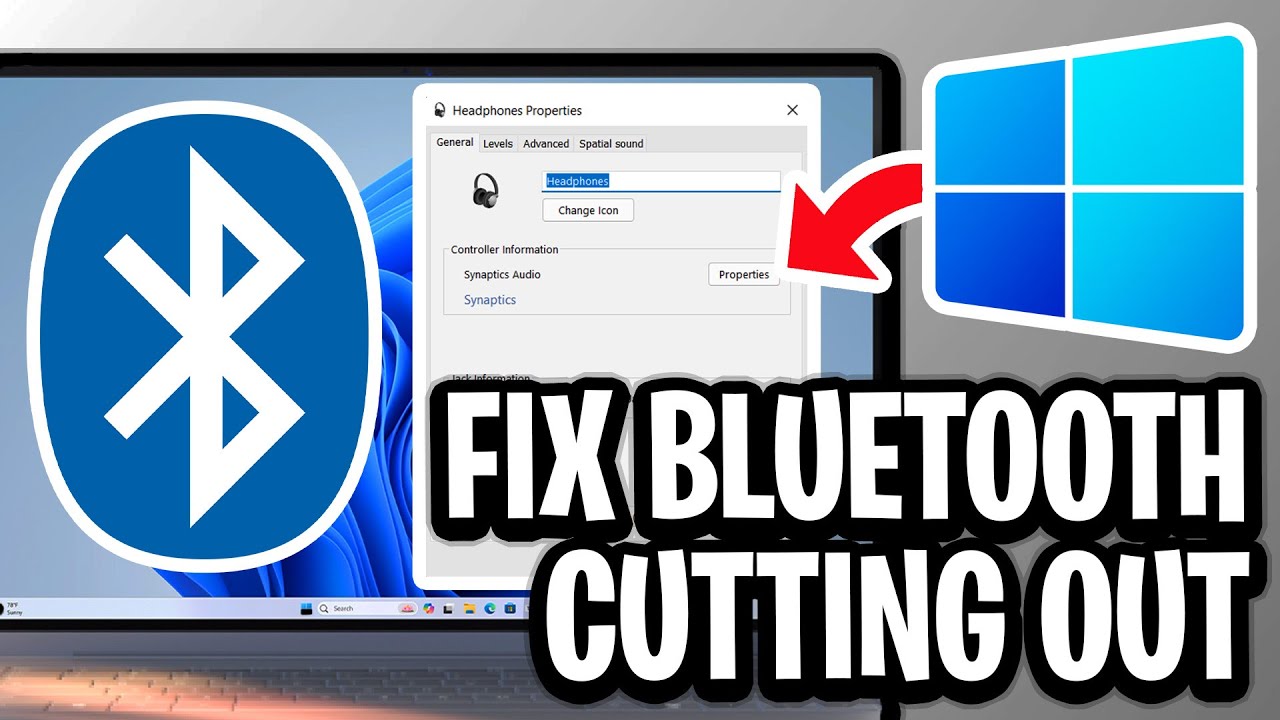
Locate your wireless headphones, right-click them, and select Properties.
-
Click the Services tab at the top.
-
Uncheck the box next to Handsfree Telephony.
-
Click OK and restart your computer.
Official Source: Microsoft Support – Fix audio and microphone problems
Method 4: Move Your Wi-Fi to the 5GHz Band
Because Bluetooth strictly operates on the 2.4GHz frequency, a PC downloading heavy files over a 2.4GHz Wi-Fi connection will violently collide with your headphone signal.
-
Click the Wi-Fi icon in your taskbar, right-click your currently connected network, and select Properties.
-
Scroll down to the Properties list and look at the Network band.
-
If it says 2.4GHz, you are dealing with active signal collision.
-
Open your router’s mobile app (or type your router’s IP into a web browser) and explicitly connect your PC to your home’s 5GHz network instead.
-
If you cannot change the router settings, plug your PC directly into the router using an Ethernet cable and turn off your PC’s Wi-Fi.
Official Source: Microsoft Support – Wi-Fi problems and Bluetooth interference
How to Verify the Fix
Put your headphones on, start a YouTube video or Spotify playlist, and walk 5 to 10 feet away from your computer to confirm the audio stream stays perfectly smooth without any clipping or robotic distortion.
Official Source: Microsoft Support – Check Bluetooth connection status