Windows 11 holding onto a barely functional Wi-Fi signal when a perfect connection is right next to you is maddening. In my ten years dealing with office networking, I see this constantly because Windows prioritizes connection history over actual signal strength. Follow the steps below, and we will force your PC to drop the weak signals and only connect to the networks you actually want to use.
Official Source: Microsoft Support – Fix Wi-Fi connection issues in Windows
Why Are You Seeing This Error?
Understanding the technical trigger helps you fix it faster the next time you connect to a new router or hotspot.
-
Historical Priority Over Strength: Windows remembers the chronological order you joined networks. If you connected to a weak 2.4GHz network first, Windows will cling to it until it completely drops, ignoring the stronger 5GHz network right next to it.
-
Roaming Aggressiveness Defaults: Your Wi-Fi card is factory-programmed to be “lazy.” It won’t actively scan for a better access point if it currently has even a 1% connection to the old one.
-
Lingering Auto-Connect Flags: Every time you click “Connect automatically” at a coffee shop or hotel, Windows permanently stores that profile and actively hunts for it in the background forever.
Official Source: Microsoft Learn – Wi-Fi roaming configuration
What You Need Before Starting
-
You need to know the Wi-Fi passwords for your primary, strong networks, in case we need to reset your connection profiles.
-
You must be logged into an Administrator account to change advanced adapter settings in the Device Manager.
-
Have your laptop unplugged from an Ethernet cable to ensure we are only testing wireless behavior.
Official Source: Microsoft Support – Find your Wi-Fi network password in Windows
Step-by-Step Solutions (Ranked Easiest to Hardest)
Method 1: Turn Off Auto-Connect for the Weak Network
-
Click the Wi-Fi icon in your taskbar (bottom right corner).
-
Click the right-facing arrow next to your Wi-Fi icon to see available networks.
-
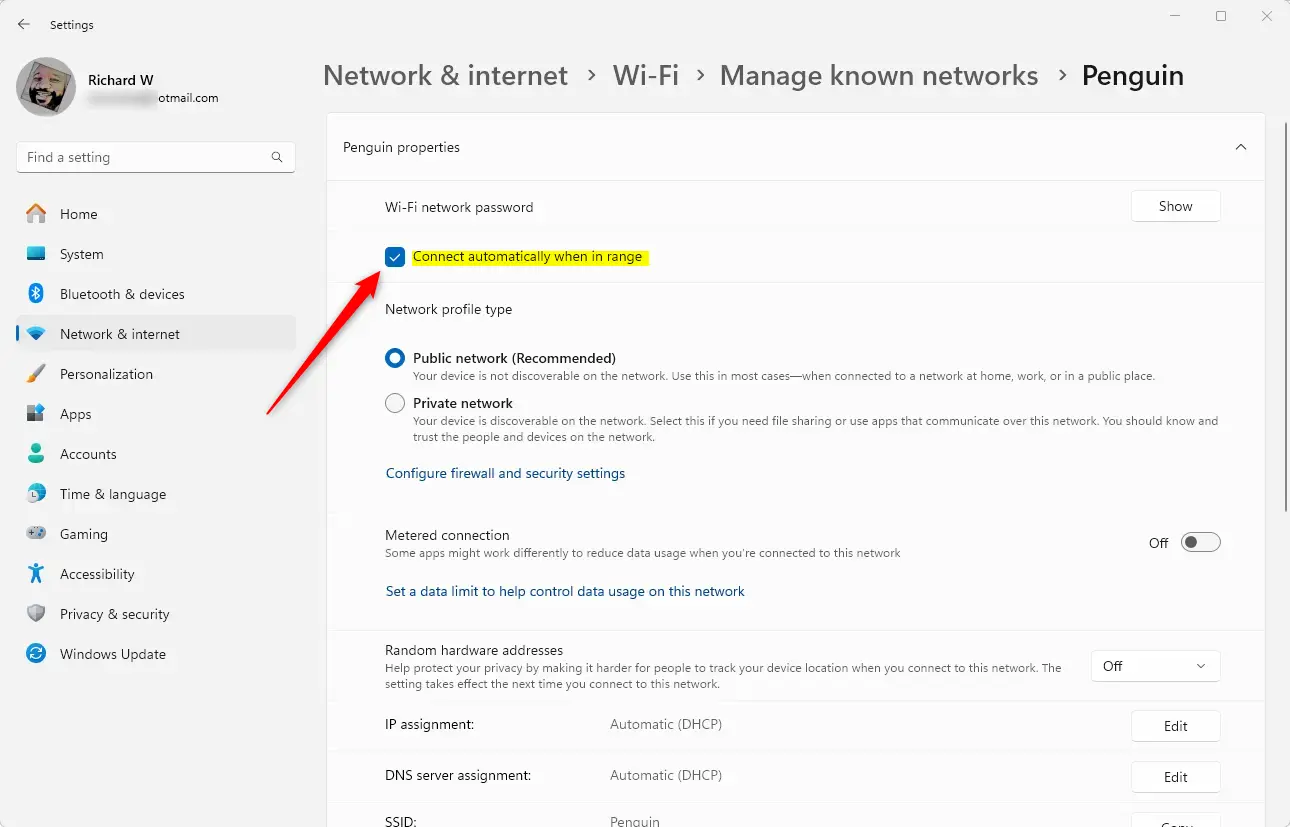
Right-click on the weak network that keeps interrupting you and select Properties.
-
Uncheck the box next to Connect automatically when in range.
-
Close the Settings window.
Official Source: Microsoft Support – Connect to a Wi-Fi network in Windows
Method 2: Tell Windows to “Forget” the Bad Network
If turning off auto-connect fails, I always just delete the profile entirely so Windows literally doesn’t know how to connect to it.
-
Press the Windows key + I to open Settings.
-
Click on Network & internet on the left sidebar.
-
Click on Wi-Fi, then select Manage known networks.
-
Scroll down your list of saved networks until you find the weak one.
-
Click the Forget button next to it.
Official Source: Microsoft Support – Manage wireless network profiles
Method 3: Increase Your Wi-Fi Card’s Roaming Aggressiveness
This forces your PC to actively drop a weak signal and grab a stronger one when you walk around the house or office.
-
Press the Windows key + X and select Device Manager.
-
Click the arrow next to Network adapters to expand the list.
-
Right-click your main wireless adapter (usually labeled Intel, Realtek, or Qualcomm Wi-Fi) and select Properties.
-
Click on the Advanced tab at the top.
-
In the “Property” list, find and click on Roaming Aggressiveness.
-
In the “Value” dropdown menu on the right, change it to Highest or Medium-High.
-
Click OK and restart your computer.
Official Source: Microsoft Learn – Advanced network adapter settings
Method 4: Reprioritize Networks via Command Prompt
Windows 11 removed the visual drag-and-drop network priority menu, so we have to use the command line to explicitly tell Windows which network is the boss.
-
Press the Windows key, type cmd, right-click on Command Prompt, and select Run as administrator.
-
Type netsh wlan show profiles and press Enter to see the exact names of your saved networks.
-
Type netsh wlan set profileparameter name=”YOUR_STRONG_NETWORK_NAME” connectionmode=auto (replace YOUR_STRONG_NETWORK_NAME with the exact name from step 2, keeping the quotation marks) and press Enter.
-
Type netsh wlan set profileparameter name=”YOUR_WEAK_NETWORK_NAME” connectionmode=manual (replace with the weak network name) and press Enter.
-
Close the Command Prompt.
Official Source: Microsoft Learn – Netsh Commands for Wireless Local Area Network (WLAN)
Frequently Asked Questions (FAQ)
What happens if I forget my home 2.4GHz network, will my smart devices stop working? No. Forgetting a network on your PC only stops your computer from connecting to it. Your smart home devices (like bulbs or plugs) communicate directly with the router on the 2.4GHz band and will remain connected perfectly fine.
Official Source: Microsoft Support – Wi-Fi problems and your home layout
Does changing Roaming Aggressiveness drain my laptop battery faster? Yes, slightly. Because your Wi-Fi card is scanning the environment more frequently for stronger signals, it uses a fraction more power. However, the battery drain is minimal and usually worth it to eliminate the frustration of dropped connections.
Official Source: Microsoft Learn – Power management for network devices
How to Verify the Fix
Restart your computer near the weak Wi-Fi signal, click the Wi-Fi icon in your taskbar, and confirm your system ignores the weak network and automatically connects only to your preferred, high-speed connection.
Official Source: Microsoft Support – Check Wi-Fi network connection status