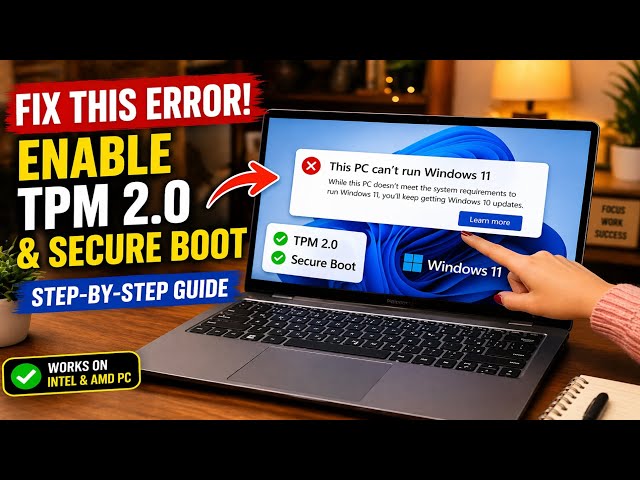
This PC Can’t Run Windows 11″ is the most common roadblock during installation, almost always caused by your motherboard having its Trusted Platform Module (TPM 2.0) disabled by default. In my decade of building and upgrading PCs, I see this daily—your computer is likely fully compatible, it just needs a quick BIOS tweak. Follow the steps below, and we will flip the right switch to get Windows 11 installed today.
Official Source: Microsoft Support – Enable TPM 2.0 on your PC
Why Are You Seeing This Error?
Understanding the hardware configuration helps you quickly identify exactly what setting needs to be changed in your system.
-
Disabled Firmware TPM: Most Intel and AMD motherboards built after 2017 have TPM 2.0 built directly into the CPU, but manufacturers ship them with the feature turned off in the BIOS to support older operating systems.
-
Legacy Boot Mode is Active: Windows 11 requires UEFI boot mode and Secure Boot to see the TPM chip. If your BIOS is set to Legacy or CSM (Compatibility Support Module), the TPM remains completely hidden from the installer.
-
Outdated Motherboard BIOS: Sometimes, early Ryzen or Intel Core motherboards have buggy firmware that fails to accurately report the TPM status to the Windows installer.
Official Source: Microsoft Learn – Windows 11 requirements and TPM 2.0
What You Need Before Starting
-
You will need to know the brand of your motherboard or laptop (e.g., Dell, HP, ASUS, MSI) to press the correct BIOS boot key.
-
Save your work and close all applications, as you have to restart the computer to access the low-level hardware settings.
-
Have a smartphone handy to read these instructions, since your PC screen will be locked in the BIOS menu while you work.
Official Source: Microsoft Support – BIOS/UEFI access and configuration
Step-by-Step Solutions (Ranked Easiest to Hardest)
Method 1: Enable fTPM / PTT in the BIOS (Most Common Fix)
For 90% of machines, flipping this single setting immediately solves the installation error.
-
Restart your computer and repeatedly tap your BIOS key (usually F2, F12, Delete, or Esc) before the Windows logo appears.
-
Once in the BIOS, switch to Advanced Mode (often done by pressing F7).
-
Look for a tab named Security, Advanced, or Trusted Computing.
-
Find the TPM setting. On Intel systems, it is called Intel PTT (Platform Trust Technology). On AMD systems, it is called AMD fTPM.
-
Change the setting from Disabled to Enabled.
-
Press F10 to save your changes and exit.
Official Source: Intel Support – How to Enable Intel Platform Trust Technology (PTT)
Method 2: Enable Secure Boot and Disable CSM
If the TPM is enabled but Windows still throws the error, your legacy boot mode is blocking the system from recognizing it.
-
Restart your PC and enter the BIOS by tapping Delete or F2.
-
Go to the Boot or Boot Options tab.
-
Look for CSM (Compatibility Support Module) or Legacy Boot and set it to Disabled.
-
Find the Secure Boot option and change it to Enabled.
-
If the system asks you to update factory keys, select Yes or Update.
-
Press F10 to save your configuration and exit.
Official Source: Microsoft Support – Windows 11 and Secure Boot
Method 3: Update Your Motherboard BIOS
In my experience, older motherboards simply will not show the PTT or fTPM option at all until you flash the newest firmware.
-
Press the Windows key, type msinfo32, and press Enter to find your BaseBoard Product (this is your motherboard model).
-
Go to your manufacturer’s official support website (like ASUS, MSI, or Dell) on another device.
-
Download the latest BIOS file and extract it to a blank USB flash drive.
-
Restart your computer into the BIOS and look for the flash utility (often called EZ Flash, M-Flash, or Q-Flash).
-
Select the file on your USB drive and confirm the update. Warning: Do not turn off your PC or unplug it during this process.
Official Source: Dell Support – Dell BIOS Updates and Firmware Flashing
Frequently Asked Questions (FAQ)
Do I need to buy a physical TPM chip? No. Almost every CPU manufactured after 2017 has a firmware-based TPM built directly into the processor. You only need to buy a physical module if you are using a much older, custom-built motherboard that specifically requires a dedicated TPM header add-on.
Official Source: Microsoft Learn – Trusted Platform Module Technology Overview
Will enabling TPM or Secure Boot delete my files? No. Flipping these settings in your BIOS only changes how the motherboard talks to Windows. Your personal files, photos, and installed programs on your hard drive remain completely untouched.
Official Source: Microsoft Support – Secure Boot and TPM Data Retention
How to Verify the Fix
Press the Windows key + R, type tpm.msc, press Enter, and check the bottom right corner of the window to confirm the “Specification Version” reads 2.0 before retrying your Windows 11 installation.
Official Source: Microsoft Support – Verify TPM status in Windows