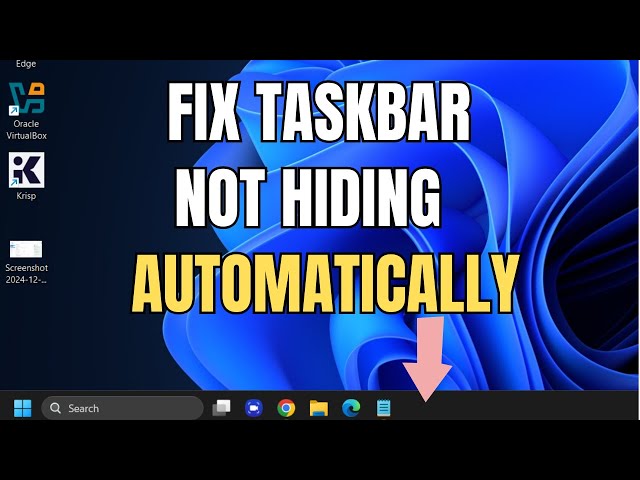
Having the taskbar stubbornly stay visible on your secondary monitors when you have auto-hide turned on ruins your screen real estate and is incredibly distracting. In my ten years of setting up multi-monitor workstations, this specific glitch usually happens because a background app is silently demanding attention or the Windows Explorer process has hung up across different display scales. Follow the steps below, and we will force the taskbar back into hiding across all your screens today.
Official Source: Microsoft Support – How to use the taskbar in Windows
Why Are You Seeing This Error?
Understanding the technical trigger helps you fix it faster the next time it happens without rebooting your whole system.
-
Hidden App Notifications: An application running in the background (like Teams, Slack, or an antivirus update) is trying to push a notification badge. Windows intentionally locks the taskbar in the “open” position until you acknowledge the alert.
-
Stuck Windows Explorer Process: The
explorer.exeservice, which draws the taskbar, often desyncs when you move application windows between monitors with different refresh rates or scaling percentages. -
Conflicting Taskbar Behaviors: Windows 11 sometimes struggles to apply the auto-hide rule to extended displays if the “Show my taskbar on all displays” setting glitches during a graphics driver update.
Official Source: Microsoft Support – Fix problems with the Start menu and Taskbar
What You Need Before Starting
-
You must have Administrator privileges if we need to force-quit system services.
-
Ensure all your monitors are currently plugged in, powered on, and recognized by Windows in your display settings.
-
Save any active file transfers or open documents, as we will be restarting the Windows graphical interface.
Official Source: Microsoft Support – Set up dual monitors on Windows
Step-by-Step Solutions (Ranked Easiest to Hardest)
Method 1: Restart the Windows Explorer Process
In my experience, simply refreshing the interface clears out the stuck bounding box 90% of the time, immediately dropping the taskbar back down.
-
Press Ctrl + Shift + Esc on your keyboard to open Task Manager.
-
Make sure you are on the Processes tab (the square icon in the left sidebar).
-
Scroll down the list until you find Windows Explorer (it looks like a yellow folder icon).
-
Right-click on Windows Explorer and select Restart.
-
Your screens will flash black for a second, and the taskbar will reload and auto-hide.
Official Source: Microsoft Learn – Troubleshooting the Shell Experience Host and Explorer
Method 2: Clear Hidden App Notifications
If restarting Explorer did not work, an app in your system tray is holding the taskbar open invisibly.
-
Look at the system tray (the bottom right corner of your primary screen where the clock is).
-
Click the small upward arrow to show hidden icons.
-
Look for any app icon with a red dot, a bell, or a highlighted color. Click on it to open the app and clear the notification.
-
If you cannot find the app, press the Windows key + I to open Settings.
-
Click on System, then click on Notifications.
-
Toggle Do not disturb to On. This suppresses all badges and forces the taskbar to drop.
Official Source: Microsoft Support – Turn on Do not disturb in Windows 11
Method 3: Toggle and Reset Multi-Monitor Taskbar Settings
Sometimes the registry key holding your preference gets stuck and needs to be manually overwritten by toggling the settings off and back on.
-
Right-click on an empty space on your taskbar and select Taskbar settings.
-
Scroll down and click on Taskbar behaviors to expand the menu.
-
Uncheck the box next to Automatically hide the taskbar.
-
Uncheck the box next to Show my taskbar on all displays.
-
Close the settings window completely.
-
Re-open Taskbar settings, expand Taskbar behaviors, and re-check both boxes to reset the configuration across all monitors.
Official Source: Microsoft Support – Multiple monitors and taskbar settings
Method 4: Terminate the SearchHost Background Process
Windows Search is deeply integrated into the taskbar. If the search indexer hangs while polling a secondary drive, it freezes the entire taskbar layout.
-
Press Ctrl + Shift + Esc to open Task Manager.
-
Click on the Details tab (the icon with three horizontal lines in the left sidebar).
-
Scroll alphabetically until you find SearchHost.exe.
-
Right-click SearchHost.exe and click End task.
-
Confirm the action. Windows will immediately restart this service cleanly in the background, freeing the taskbar.
Official Source: Microsoft Learn – Troubleshoot Windows Search performance
Frequently Asked Questions (FAQ)
Why does clicking on a secondary monitor make the taskbar pop up? Windows interprets your click as bringing active focus to that display. If a window is not maximized full-screen, the taskbar will briefly appear to show you the active applications for that specific screen before hiding again.
Official Source: Microsoft Learn – Multi-monitor user interface behavior
Does changing my display scaling fix taskbar issues? Yes. If one monitor is set to 100% scale and another is at 150%, the taskbar bounding box can glitch as it passes between screens. Setting them to matching resolutions and scales often permanently resolves auto-hide syncing issues.
Official Source: Microsoft Support – View display settings in Windows
How to Verify the Fix
Click on the center of your empty desktop background on your primary monitor, and watch your secondary monitors to confirm the taskbar immediately slides down out of view on all screens.
Official Source: Microsoft Support – Show or hide the taskbar