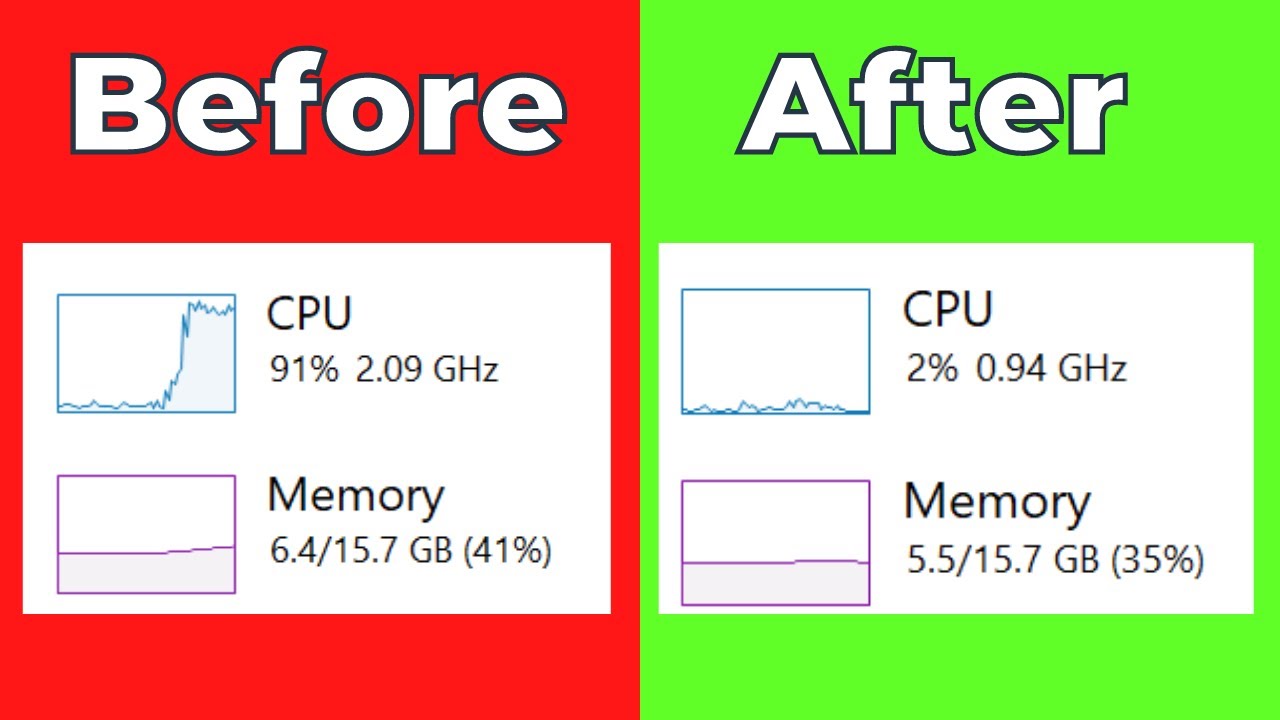
Seeing “System Interrupts” maxing out your CPU in Task Manager is incredibly frustrating because it is not actually a program, but a placeholder for hardware communication issues. In my ten years on the IT helpdesk, I see this specific problem spike whenever a failing driver or dying USB port starts spamming the processor with error requests. Follow the steps below, and we will track down the bad hardware or driver and stop the CPU drain today.
Official Source: Microsoft Learn – Advanced troubleshooting for system interrupts and performance
Why Are You Seeing This Error?
Understanding the root cause helps you narrow down what to unplug or update first. This error specifically triggers when hardware components send too many interrupt requests (IRQs) to the processor.
-
Faulty Hardware Devices: A failing USB mouse, dying hard drive, or bad motherboard component is constantly sending error signals to the CPU, demanding immediate attention.
-
Outdated or Buggy Drivers: In my experience, corrupted audio or network drivers are the most common offenders, causing a software loop that manifests as hardware interrupts.
-
Fast Startup Conflicts: Windows 11’s Fast Startup feature can sometimes resume drivers in a broken state, causing continuous interrupts that overload the processor.
Official Source: Microsoft Support – Troubleshooting performance issues related to hardware
What You Need Before Starting
-
You must be logged into an account with Administrator privileges to disable devices and update system drivers.
-
Unplug all non-essential external devices (printers, webcams, extra monitors, external hard drives) before we begin.
-
Save your open work, as we will be disabling network adapters and restarting the machine.
Official Source: Microsoft Support – Start your PC in safe mode and isolate hardware
Step-by-Step Solutions (Ranked Easiest to Hardest)
Method 1: The External Hardware Isolation Test
I always start here because a bad USB cable or dying peripheral is the culprit 30% of the time.
-
Press Ctrl + Shift + Esc to open Task Manager.
-
Unplug every single external device from your PC except your primary mouse and keyboard.
-
Watch the CPU usage for “System interrupts” in the Task Manager window for 60 seconds.
-
If the usage drops to 1-2%, plug your devices back in one by one, waiting 10 seconds between each, until the CPU spikes again. You just found your bad hardware.
Official Source: Microsoft Learn – How to troubleshoot hardware issues and high CPU
Method 2: Disable Fast Startup
This prevents your hardware drivers from waking up in a glitchy, error-looping state.
-
Press the Windows key, type Control Panel, and press Enter.
-
Change the “View by” option in the top right to Large icons, then click on Power Options.
-
On the left sidebar, click Choose what the power buttons do.
-
Click the blue text that says Change settings that are currently unavailable.
-
Uncheck the box next to Turn on fast startup (recommended).
-
Click Save changes and restart your computer.
Official Source: Microsoft Support – Change power and sleep settings in Windows
Method 3: Disable Internal Hardware via Device Manager
If external devices aren’t the issue, we need to test internal components like Wi-Fi cards and audio controllers one by one.
-
Press the Windows key + X and select Device Manager.
-
Expand the Network adapters section, right-click your Wi-Fi or Ethernet adapter, and click Disable device. (Do not click Uninstall).
-
Check Task Manager to see if the CPU drops. If not, right-click the adapter again and select Enable device.
-
Repeat this process for devices under Sound, video and game controllers.
-
Warning: Never disable anything under “Computer,” “Processors,” or “System devices.”
Official Source: Microsoft Learn – Using Device Manager to troubleshoot hardware
Method 4: Update the BIOS and Chipset Drivers
If the motherboard itself is misrouting data, only a core firmware update will fix the interrupts.
-
Press the Windows key, type msinfo32, and press Enter to open System Information.
-
Note your BaseBoard Manufacturer and BaseBoard Product (this is your motherboard model).
-
Go directly to the manufacturer’s official support website (e.g., Dell, HP, ASUS).
-
Download and install the latest Chipset driver and BIOS update for your exact model.
-
Follow the manufacturer’s on-screen instructions carefully, as your PC will reboot multiple times.
Official Source: Microsoft Support – Updating firmware and drivers in Windows
Frequently Asked Questions (FAQ)
Is “System Interrupts” a virus or malware? No. It is an official Windows system process that handles hardware-to-CPU communication. While malware can cause high CPU usage, it rarely disguises itself as this specific system-level interrupt handler.
Official Source: Microsoft Security – Understanding core system processes
Why is my System Interrupts always sitting at 1% or 2%? This is completely normal. Your keyboard, mouse, and internal clock constantly send tiny, healthy interrupts to the processor. You only need to troubleshoot if the usage is consistently sitting above 10% to 20% while the PC is idle.
Official Source: Microsoft Learn – DPC and IRQ latency analysis
How to Verify the Fix
Press Ctrl + Shift + Esc to open Task Manager, click the Performance tab, and confirm your overall CPU utilization stays below 5% when you are not actively moving your mouse or running any programs.
Official Source: Microsoft Support – Task Manager overview