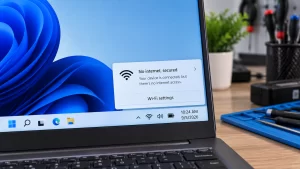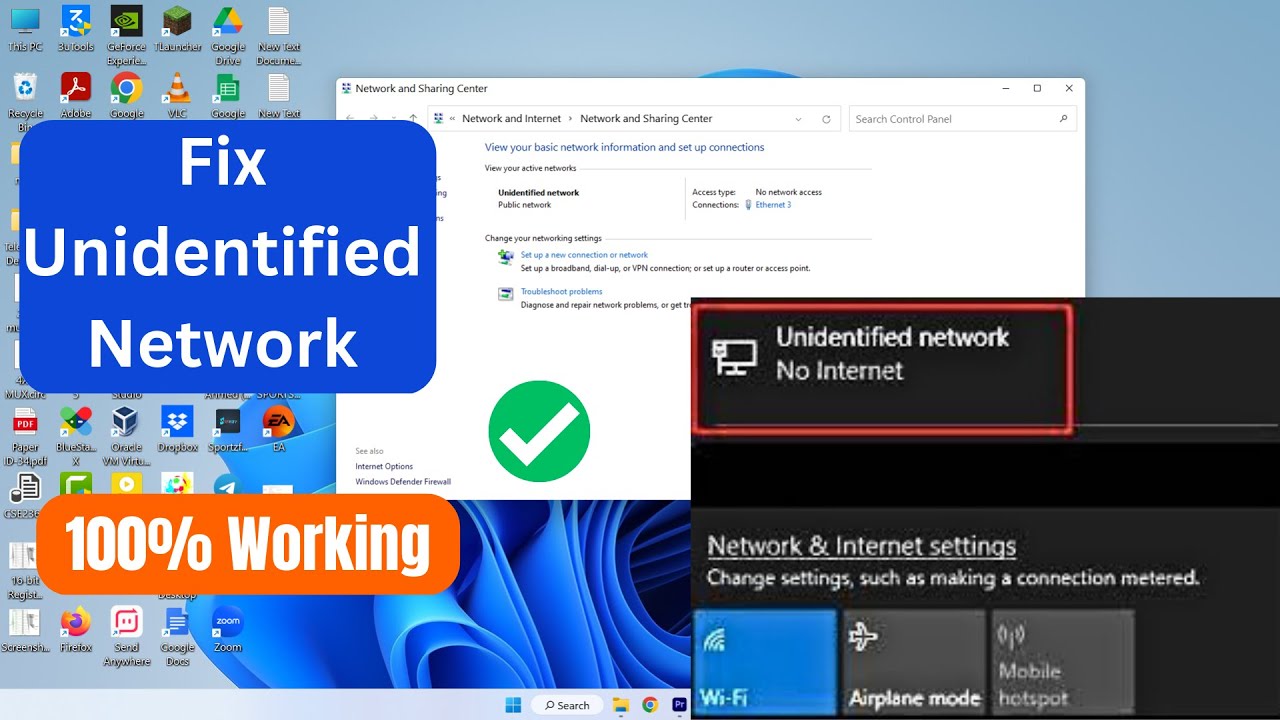
Seeing an “Unidentified Network” status with a yellow warning triangle over your Ethernet icon means your PC is physically plugged in, but your router refuses to hand it a valid IP address. In my ten years on the IT helpdesk, I see this daily—it completely kills your workflow, but it is almost always a localized software glitch rather than a dead copper cable. Follow the steps below, and we will force your network card to shake hands with the router and get you back online today.
Official Source: Microsoft Support – Fix Ethernet connection problems in Windows
Why Are You Seeing This Error?
Understanding the technical root cause helps you diagnose if the problem is sitting inside your PC or inside the router on your desk.
-
Corrupted IP Assignment (APIPA): When your PC cannot reach the DHCP server on your router, Windows automatically assigns itself a fallback address (usually starting with 169.254.x.x). This fallback address cannot route traffic to the broader internet.
-
Misconfigured TCP/IP Stack: The internal networking rulebook your computer uses to format data packets is broken or corrupted. Because the formatting is wrong, the router rejects the connection as unrecognized.
-
Stalled Network Drivers: A recent Windows update, a brief power surge, or a sleep-state glitch caused the driver controlling your physical Ethernet adapter to freeze, preventing it from processing the inbound network traffic.
Official Source: Microsoft Learn – Troubleshooting TCP/IP connectivity
What You Need Before Starting
-
You must be logged into a Windows account with Administrator privileges to release IP addresses and reset core network adapters.
-
Check that your physical Ethernet cable is securely clicked into both your computer’s port and the LAN port on the back of the router. You should see blinking indicator lights next to the physical port.
-
Save your open work and close your applications, as we will be restarting your computer to apply the deep driver resets.
Official Source: Microsoft Support – Check your network connection status
Step-by-Step Solutions (Ranked Easiest to Hardest)
Method 1: Release and Renew Your IP Address
In my experience, dumping the broken fallback IP address and forcing Windows to ask the router for a brand new one fixes this issue 80% of the time.
-
Press the Windows key, type cmd, right-click on Command Prompt, and select Run as administrator.
-
Type ipconfig /release and press Enter to dump the broken IP configuration.
-
Type ipconfig /flushdns and press Enter to clear out any corrupted temporary routing files.
-
Type ipconfig /renew and press Enter to force a fresh request to the router. Wait a few seconds for the text to populate.
-
Close the Command Prompt window and test your internet connection.
Official Source: Microsoft Support – Reset TCP/IP and clear DNS cache
Method 2: Reset the Windows TCP/IP Stack (Winsock Reset)
If renewing the IP address fails, the underlying software architecture that handles your networking is corrupted. We have to wipe the registry keys tied to the network catalog and rebuild them.
-
Press the Windows key, type cmd, right-click on Command Prompt, and select Run as administrator.
-
Type netsh winsock reset and press Enter. You will see a message telling you to restart your computer. Do not restart yet.
-
Type netsh int ip reset and press Enter. This strips away the corrupted TCP/IP rules.
-
Close the Command Prompt window and restart your computer immediately.
Official Source: Microsoft Learn – How to reset TCP/IP by using the NetShell utility
Method 3: Disable and Re-enable the Ethernet Hardware
Sometimes the physical hardware chip on your motherboard gets stuck in a suspended power state and refuses to accept new network assignments.
-
Press the Windows key + R to open the Run dialog box.
-
Type ncpa.cpl and press Enter to open the Network Connections panel.
-
Right-click on your Ethernet connection and select Disable.
-
Wait exactly 15 to 20 seconds. The icon will turn gray to indicate the hardware is powered down.
-
Right-click on the Ethernet icon again and select Enable. This forces a cold boot of the network card and a fresh handshake with your router.
Official Source: Microsoft Learn – Advanced network adapter configuration
Method 4: Uninstall the Ethernet Driver
If a bad Windows update broke the software telling the physical port how to operate, we need to delete the driver and let the system pull a clean copy from its internal backup store.
-
Press the Windows key + X and select Device Manager.
-
Click the arrow next to Network adapters to expand the hardware list.
-
Right-click your primary Ethernet adapter (usually labeled Realtek PCIe GbE Family Controller, Intel Ethernet Connection, or Killer E3100) and select Uninstall device.
-
If a warning box pops up asking to “Attempt to remove the driver for this device,” leave it unchecked. Just click the Uninstall button.
-
Click Action at the very top menu bar of the window and select Scan for hardware changes.
-
Windows will automatically detect the missing hardware and reinstall a fresh, uncorrupted driver.
Official Source: Microsoft Support – Update or reinstall drivers in Windows
Method 5: Manually Assign a Static IP Address
When your router’s DHCP server is completely failing to assign an address to your specific PC, you can manually force an address into your adapter settings to bypass the router’s broken assignment process.
-
Press the Windows key + R, type ncpa.cpl, and press Enter.
-
Right-click your Ethernet adapter and select Properties.
-
Click on Internet Protocol Version 4 (TCP/IPv4) to highlight it, then click the Properties button below it.
-
Check the circle next to Use the following IP address.
-
In the IP address box, type 192.168.1.50 (If your router uses a 10.0.0.1 gateway, type 10.0.0.50 instead).
-
Click into the Subnet mask box, and it will automatically fill with 255.255.255.0.
-
In the Default gateway box, type your router’s IP (usually 192.168.1.1 or 10.0.0.1).
-
Under Preferred DNS server, type 8.8.8.8. Under Alternate DNS server, type 8.8.4.4.
-
Click OK, close the windows, and test your connection.
Official Source: Microsoft Support – Change TCP/IP settings
Frequently Asked Questions (FAQ)
Does this mean my Ethernet cable is broken? Usually, no. If your cable is completely severed or dead, the icon will say “Network cable unplugged” with a red X. The “Unidentified Network” error specifically means the physical copper wire is carrying data successfully, but the software translation process is failing upon arrival.
Official Source: Microsoft Learn – Troubleshooting physical network connections
Why does my Wi-Fi work perfectly, but the Ethernet fails? Your PC uses two completely separate hardware chips and drivers to handle network traffic. A software glitch targeting your wired Realtek or Intel chip will not affect your wireless Qualcomm or Broadcom chip. This isolates the issue strictly to the Ethernet adapter settings we targeted above.
Official Source: Microsoft Support – Wi-Fi and Ethernet network interfaces
How to Verify the Fix
Look at the bottom right corner of your taskbar to confirm the globe icon has changed into a solid computer monitor icon without any yellow warning triangles, then open a web browser to ensure pages load instantly.
Official Source: Microsoft Support – Check Wi-Fi and Ethernet connection status