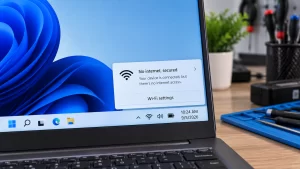
The “DNS Server Not Responding” error cuts off your internet access even when your Wi-Fi says it is fully connected, effectively turning your router into a brick. In my ten years of setting up home networks, I see this daily—it almost always means your computer is trying to translate a website name using a broken directory. Follow the steps below, and we will bypass the bad directory to get your internet flowing again today.
Official Source: Microsoft Support – Fix Wi-Fi connection issues in Windows
Why Are You Seeing This Error?
Understanding the root cause helps you figure out if the problem is your computer or your Internet Service Provider.
-
ISP Outages: Your Internet Service Provider’s default DNS server went down. Your router is screaming into the void asking where a website is located and getting no reply.
-
Corrupted DNS Cache: Your computer stores old IP addresses to load websites faster. If a website changes its IP, your local cache creates a traffic jam, causing the DNS request to time out.
-
Faulty Router Firmware: A glitch in your router’s software is dropping the DNS packets before they even leave your house.
Official Source: Microsoft Learn – Troubleshooting DNS clients
What You Need Before Starting
-
You must be logged into an account with Administrator privileges to change adapter settings.
-
Your router’s login credentials or physical access to the power cables on the back of the unit.
-
Save your open work, as we will be resetting your network adapters and briefly dropping you entirely offline.
Official Source: Microsoft Support – Managing user accounts in Windows
Step-by-Step Solutions (Ranked Easiest to Hardest)
Method 1: Flush Your Local DNS Cache
In my experience, wiping out the old, corrupted local directory fixes the issue 80% of the time without touching the router.
-
Press the Windows key, type cmd, right-click on Command Prompt, and select Run as administrator.
-
Type ipconfig /flushdns and press Enter.
-
Once you see “Successfully flushed the DNS Resolver Cache,” type ipconfig /release and press Enter.
-
Type ipconfig /renew and press Enter.
-
Close the window and restart your computer.
Official Source: Microsoft Support – Reset TCP/IP and clear DNS cache
Method 2: Change to a Public DNS Server (Google or Cloudflare)
If your ISP’s directory is completely broken, we simply point your computer to a faster, more reliable public directory like Google’s.
-
Press the Windows key + R, type ncpa.cpl, and press Enter to open Network Connections.
-
Right-click on your active Wi-Fi or Ethernet adapter and select Properties.
-
Click on Internet Protocol Version 4 (TCP/IPv4) to highlight it, then click the Properties button below it.
-
Check the circle next to Use the following DNS server addresses.
-
Set the Preferred DNS server to 8.8.8.8.
-
Set the Alternate DNS server to 8.8.4.4.
-
Click OK, close the windows, and test your internet.
Official Source: Google Developers – Get Started with Google Public DNS
Method 3: Disable IPv6 Temporarily
Sometimes older routers struggle to route the newer IPv6 protocols, causing massive DNS timeouts. Disabling it forces the rock-solid IPv4 protocol.
-
Press the Windows key + R, type ncpa.cpl, and press Enter.
-
Right-click your active connection and select Properties.
-
Scroll down the list and uncheck the box next to Internet Protocol Version 6 (TCP/IPv6).
-
Click OK and restart your computer.
Official Source: Microsoft Learn – Guidance for configuring IPv6 in Windows
Method 4: Power Cycle the Router and Modem
If every single device in your house—including your phone and smart TV—is getting this exact error, your router’s internal cache is frozen.
-
Unplug the power cable directly from the back of your router and your modem.
-
Wait a full 60 seconds. Do not plug them in early, as the internal capacitors need time to fully drain the residual memory.
-
Plug the modem in first and wait for the “Online” light to turn solid green or white.
-
Plug the router in second and wait two minutes for the Wi-Fi bands to start broadcasting again.
Official Source: Microsoft Support – Restart your router and modem
Frequently Asked Questions (FAQ)
Is changing my DNS to 8.8.8.8 safe? Yes, absolutely. 8.8.8.8 is Google’s public DNS server. It is heavily encrypted, significantly faster than most default ISP servers, and actively protects you from known malicious domains and phishing sites.
Official Source: Google Public DNS – Security and Privacy Features
Why does my phone work on Wi-Fi, but my PC says “DNS Server Not Responding”? Your PC has a corrupted local network driver or a stuck local DNS cache. When only one device on the network is affected, the issue is entirely software-based on that specific machine, which is why Method 1 (flushing the cache via Command Prompt) is the best fix.
Official Source: Microsoft Learn – Advanced network adapter troubleshooting
How to Verify the Fix
Open your web browser, type a brand-new website you haven’t visited today into the address bar, and confirm the page loads instantly without timing out.
Official Source: Microsoft Support – Verify network connection status